Chapter 1Quick start.
Before starting: a PC with 64-bit Windows 10 or 11 and Microsoft Excel 2016 or later is required. Also required: the MicroDens BLE dongle and a MicroDens paired with the dongle (chapter 3).
- Install the program (chapter 2).
- Plug the dongle into a USB port on the PC.
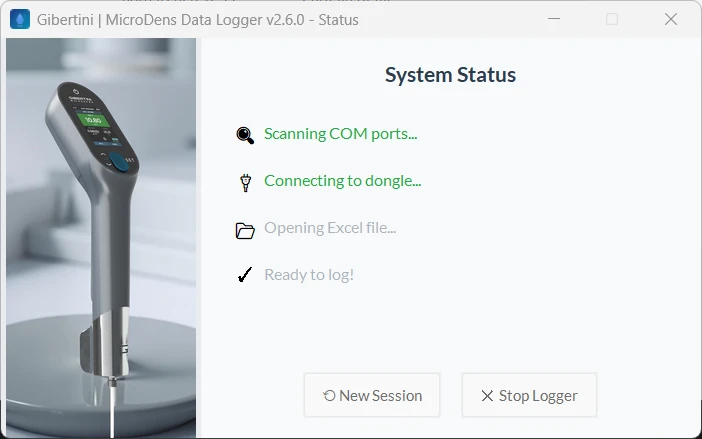
- Start MicroDens Data Logger from the Start menu. The System Status window opens and the Connecting to dongle... step turns green.
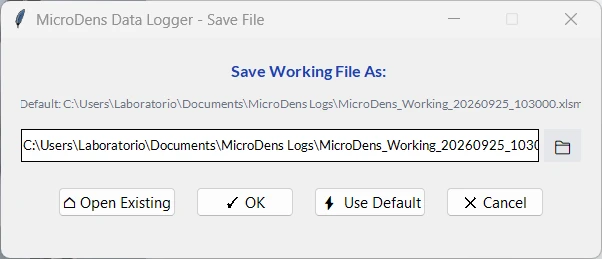
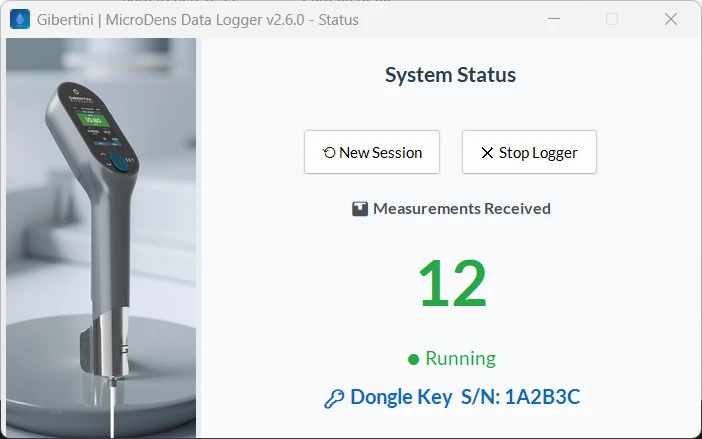
- In the Save Working File As window, click ⚡ Use Default. Excel opens the working file and the Measurements Received counter shows 0.
If Excel closes while logging, the program does not write the measurements received afterwards to the file. Keep Excel open and close the program with ✕ Stop Logger (chapter 7).
- On the MicroDens, take a measurement.
- Tap Save. The counter goes to 1 and the measurement appears in row 7 of the MicroDens Data Logger sheet.
The installer follows the Windows language, English or Italian; this manual quotes its English labels. Buttons in Windows messages, such as Retry and Yes, follow the language of Windows; the screenshots were taken on Italian Windows.
Chapter 2Install the program.
| Requirements | |
|---|---|
| Instrument | MicroDens density meter with Bluetooth (BLE) |
| Connection | MicroDens BLE dongle on a free USB port of the PC, included or sold separately depending on the instrument version (chapter 12) |
| System | Windows 10 or Windows 11, 64-bit |
| Excel | Microsoft Excel 2016 or later, Microsoft 365 included, installed on the same PC |
| USB driver | none to install: Windows recognizes the dongle automatically |
| Installation | with administrator rights on the PC |
| Internet | not required for use |
| Language | program in English; installer in English or Italian, following the Windows language |
Start the installation
- Download the setup file from the product page.
- Open the downloaded file.
- If the “Windows protected your PC” window appears, click More info.
- Click Run anyway.
- If Windows asks whether to allow changes to the device, click Yes. The installer opens, in the Windows language.
Complete the installation
- On the License Agreement page, read the terms of use.
- Select I accept the agreement.
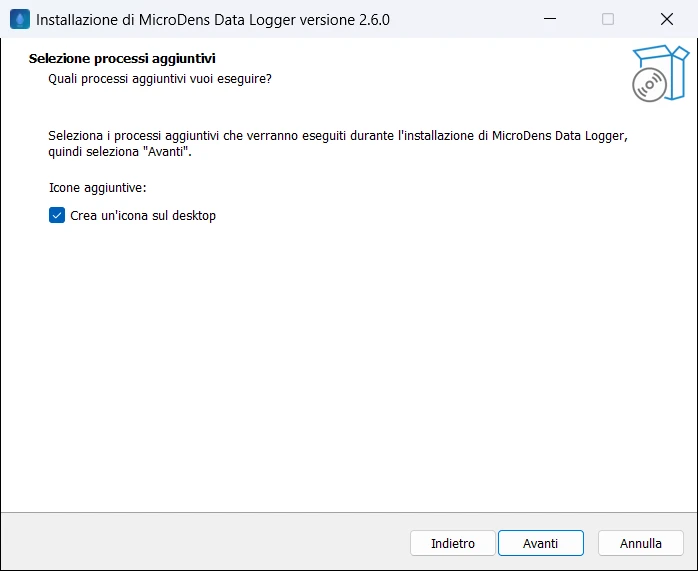
- Click Next up to the Select Additional Tasks page.
- Optional: to get a desktop icon, select Create a desktop shortcut.
- Click Next up to the page with Install.
- Click Install. The installer copies the program files.
- To start the program immediately, leave Launch MicroDens Data Logger selected.
- Click Finish.
The Start menu now has a MicroDens Data Logger group, with the program, Read Me (Italian), Requirements (Italian), Terms of use and Uninstall MicroDens Data Logger.
Chapter 3Pair the MicroDens with the dongle.
Before starting: the MicroDens BLE dongle is plugged into a USB port on the PC and the MicroDens is on.
Choose the Computer destination
- On the MicroDens, open Menu > Settings > Connections > Export destination > Destination.
- Tap Computer. The instrument returns to the Export destination page.
On the same page, Save Only If Offline is off by default: the instrument also keeps the measurements it sends in its memory (chapter 6).
Choose the dongle
- With the Back arrow, return to the Connections menu.
- Tap BLE Dongle. The Select Dongle page
opens: every dongle nearby is listed as
MicroDensDongle-<S/N>, the closest at the top. - Tap the dongle plugged into the PC. The instrument connects to the dongle and retains it in memory after it is switched off.
To switch to another dongle, repeat this procedure.
If no dongle is paired and only one is nearby, the instrument connects to it and pairs it automatically.
Chapter 4Start the program.
- Plug the dongle into a USB port on the PC.
- Start MicroDens Data Logger from the Start menu or the desktop icon. The System Status window opens and the program looks for the dongle, with no port to select.
- Wait for the Connecting to dongle... step to turn green.
The program then opens the working file window (chapter 5). If the Dongle Not Found message appears, see chapter 10.
After the file is chosen, the System Status window may show the dongle serial number on the 🔑 Dongle Key S/N line. The line appears only if the dongle reports its serial number; otherwise it stays empty.
Chapter 5Choose the working file.
Create a new file
- In the Save Working File As window, read the proposed path:
Documents\MicroDens Logs\MicroDens_Working_YYYYMMDD_hhmmss.xlsm. - Optional: to change folder, click 📁 and select the folder. The file name stays the same.
- Optional: to change the name, edit it in the text box.
If the file already exists, the program asks “Do you want to overwrite it?”. With Yes the program replaces the file with an empty one and the measurements it contained are lost. To keep them, click No and change the name.
- Click ✓ OK. Excel opens the new file and the System Status window shows 📊 Measurements Received with the counter at 0.
Continue an existing file
- In the Save Working File As window, click ⌂ Open Existing.
- Select the
.xlsmfile. - Click Open. Excel opens the file; the program writes new measurements after the last row written.
Window buttons
| Button | Effect |
|---|---|
| ✓ OK | creates the file at the path in the box; adds .xlsm if missing. Same as the Enter key |
| ⚡ Use Default | creates the file with the proposed name |
| ⌂ Open Existing | continues an existing file |
| 📁 | changes the folder and keeps the name |
| ✕ Cancel | cancels; at startup the program closes, after ⟲ New Session it stays open with no working file |
📁 and ⌂ Open Existing open in the last folder used.
Chapter 6Send measurements to the PC.
Measurements are sent to the PC in two ways: one at a time, when the measurement is saved, or all together with Send Data.
Before starting: the System Status window shows ● Running. The MicroDens is paired with the dongle, with the Computer destination (chapter 3).
With Save Only If Offline on, the instrument does not keep the measurement it sends. If Excel is closed, the program cannot write it to the file and the measurement is lost. Before saving, check that System Status shows ● Running. To always keep a copy in the instrument, turn off Save Only If Offline in Menu > Settings > Connections > Export destination.
Send a measurement when it is saved
- On the MicroDens, take a measurement.
- Tap Save. The instrument shows “Sending data...”, then “Data sent successfully.”.
- Tap OK. On the PC the Measurements Received counter increases by 1 and the measurement appears in the first empty row of the sheet.
Send the entire instrument memory
- On the MicroDens, open Menu > History (xxx), where xxx is the number of stored measurements.
- Tap Send Data. The instrument asks “Confirm action?”.
- Tap OK. The instrument shows “Starting export...”, “Measurements exported” and “Adjustments exported” in sequence.
- Wait for the “Export completed” message.
- Tap OK.
The program writes one row per measurement. It also writes service rows: three pairs of rows with the “Export Session” method (MEASUREMENTS, CALIBRATIONS, SYSTEM), for start and end. The other service rows have the “Calibration”, “Device Info” and “Sample IDs” methods.
The Measurements Received counter also counts the service rows.
If the counter does not increase, see chapter 10.
Chapter 7Change file and close the program.
Start a new session
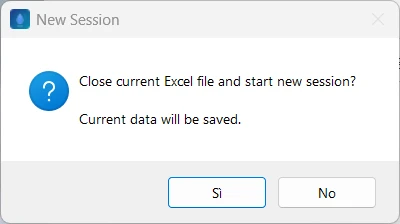
- In the System Status window, click ⟲ New Session. The message “Close current Excel file and start new session? Current data will be saved.” appears.
- Click Yes. The program saves and closes the current file, resets the counter and opens the Save Working File As window.
- Choose the working file (chapter 5).
Close the program
Click ✕ Stop Logger. The program saves the file, writes the session end time at the top of the sheet and closes. Excel stays open.
Resume after Excel has been closed
- In the System Status window, click ⟲ New Session.
- Click Yes.
- Click ⌂ Open Existing.
- Select the same file.
- Click Open. Logging resumes after the last row written.
Measurements sent while Excel was closed are not in the file.
Chapter 8Excel sheet columns.
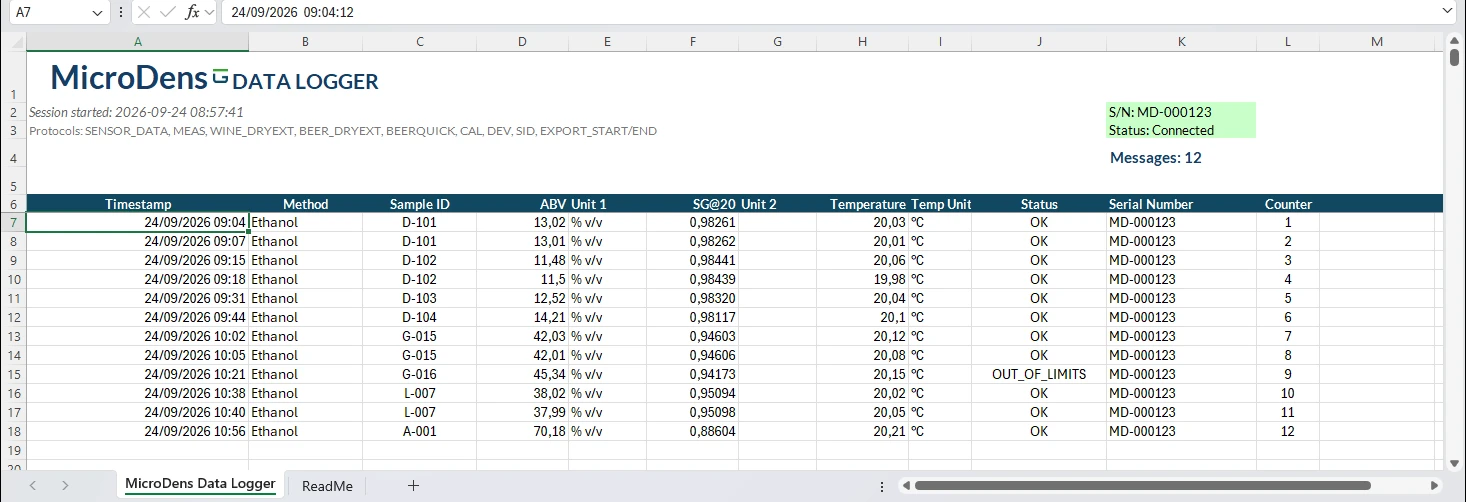
The program writes measurements to the MicroDens Data Logger sheet, one row per measurement, from row 7. Headings are in row 6. In files created with earlier versions the sheet is called MicroDens Logger.
| Column | Content |
|---|---|
| A · Timestamp | date and time of the measurement, from the instrument; if missing, PC date and time |
| B · Method | measurement method |
| C · Sample ID | sample identifier |
| D, E | first value and unit; the D heading takes the parameter name, for example Density |
| F, G | second value and unit; the F heading takes the parameter name |
| H, I · Temperature | temperature and unit |
| J · Status | measurement status, from the instrument |
| K · Serial Number | instrument serial number |
| L · Counter | progressive row number in the session |
Columns for methods with calculated values
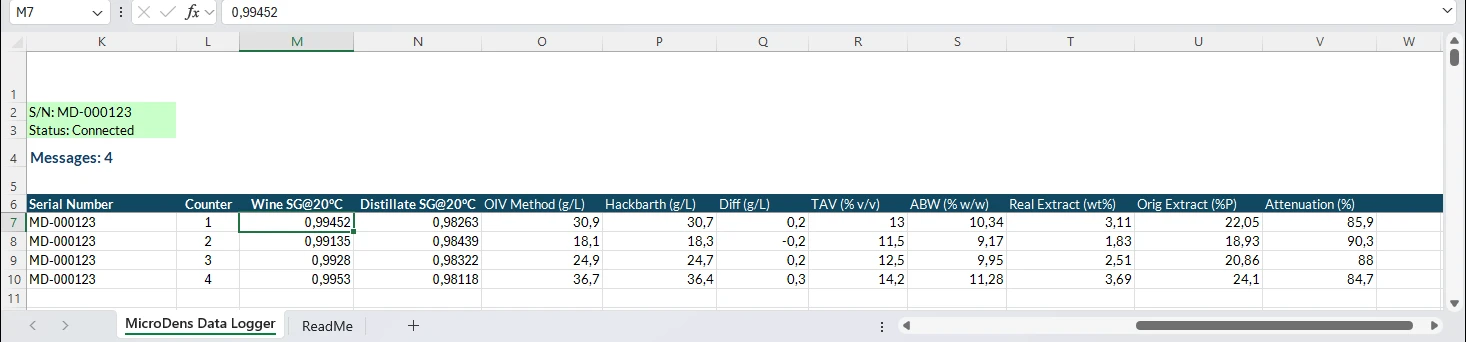
With these methods the instrument also sends the calculated values. The program writes them on the measurement row, in columns it adds the first time.
| Method | Columns | Values |
|---|---|---|
| Dry extract, wine | M–V | wine and distillate SG at 20 °C, OIV method (g/L), Hackbarth (g/L), difference (g/L), ABV (% v/v), ABW (% w/w), real extract (% w/w), original extract (°P), attenuation (%) |
| Dry extract, beer | M–T | beer and distillate SG at 20 °C, original gravity (°P), apparent extract (°P), real extract (°P), alcohol w/w (%), alcohol v/v (%), attenuation (%) |
| BeerQuick | W–AE | final SG at 20 °C, OG (°P), FG (°P), ABV (%), real extract (°P), ADF (%), ΔSG, ABW (%), RDF (%) |
| Must | AF–AK | SG at 20 °C, Brix (°Bx), Babo (°KMW), Oechsle (°Oe), Baumé (°Bé), potential alcohol (% v/v) |
Header cells and service rows
| Where | Content |
|---|---|
| A2 | Session started: session start date and time |
| A4 or B4 | Session ended: end date and time, written by ✕ Stop Logger |
| K2 | connected instrument |
| K4 | Messages: number of rows received |
| Method “Export Session” | start and end of each part of the memory transfer: MEASUREMENTS, CALIBRATIONS, SYSTEM |
| Method “Calibration”, “Device Info”, “Sample IDs” | adjustments, instrument data and sample IDs, from the memory transfer |
Chapter 9Automatic saving.
The program saves the working file every 10 measurements, after every row with calculated values, on ⟲ New Session and on ✕ Stop Logger.
It also saves backup copies, in the folder of the working file, named
MicroDens_Backup_<reason>_<date_time>.xlsm. It creates them at 10, 100,
500 and 1000 measurements, then every 1000 measurements, and every 2 hours.
Chapter 10Troubleshooting.
“No MicroDens dongle detected.” (Dongle Not Found)
Cause: the dongle is not plugged in.
Remedy: plug the dongle into a USB port and click Retry.
Cause: another program is using the dongle port, for example Arduino IDE.
Remedy: close the other program and click Retry.
Cause: Windows does not recognize the dongle.
Remedy: in Device Manager, under Ports (COM & LPT), check that a USB serial device
is listed while the dongle is plugged in. If not, try another USB port, then contact
support (chapter 12).
With Cancel the program closes.
The Measurements Received counter does not increase
Cause: the instrument export destination is not Computer.
Remedy: choose the Computer destination
(chapter 3).
Cause: the MicroDens is paired with another dongle.
Remedy: pair again (chapter 3).
Cause: the measurement was not saved on the instrument.
Remedy: save the measurement on the MicroDens (chapter 6).
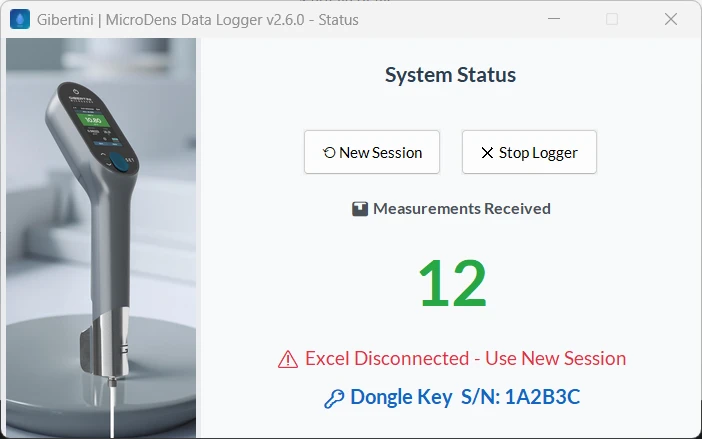
“⚠️ Excel Disconnected - Use New Session”
Cause: Excel closed while logging. Measurements received afterwards are not in the
file.
Remedy: resume with ⟲ New Session and
⌂ Open Existing (chapter 7).
“Unable to create a new Excel file.” (Excel File Creation Failed)
Cause: no permission to write in the chosen folder.
Remedy: with 📁 choose a folder with write permission, for example
Documents, and click ✓ OK.
“Filename cannot contain: * ? " < > |” (Invalid Filename)
Cause: the file name contains a character that is not allowed.
Remedy: remove the character and click ✓ OK.
Excel does not open after choosing the file
Cause: Microsoft Excel for Windows is not installed on the PC.
Remedy: install Excel and restart the program.
Log file for support
The program writes a log to
%LOCALAPPDATA%\MicroDens Data Logger\logs\microdns_logger.log. Attach it to the
support request.
Chapter 11Uninstall the program.
- In the Start menu, open the MicroDens Data Logger group.
- Click Uninstall MicroDens Data Logger.
- When asked to confirm, click Yes. Windows removes the program.
Working files stay in the folder where they were saved.
Chapter 12Updates and support.
New versions are downloaded from the product page. Gibertini provides corrective and security updates for 5 years from the delivery of each version.
Support, also to order the MicroDens BLE dongle: service@gibertini.com · +39 02 3541434 · Monday–Friday, 9:00–18:00, Italian time.
Security reports: software.gibertini.com/security.