Chapter 1Quick start.
A PC with 64-bit Windows 10 or 11 and Microsoft Excel is required. On the MicroDens, the export destination is set to Computer (chapter 3). The connection uses the USB-C cable supplied with the instrument.
- Install MicroDens USB Extractor (chapter 2).
- Connect the MicroDens to the PC with the USB-C cable.
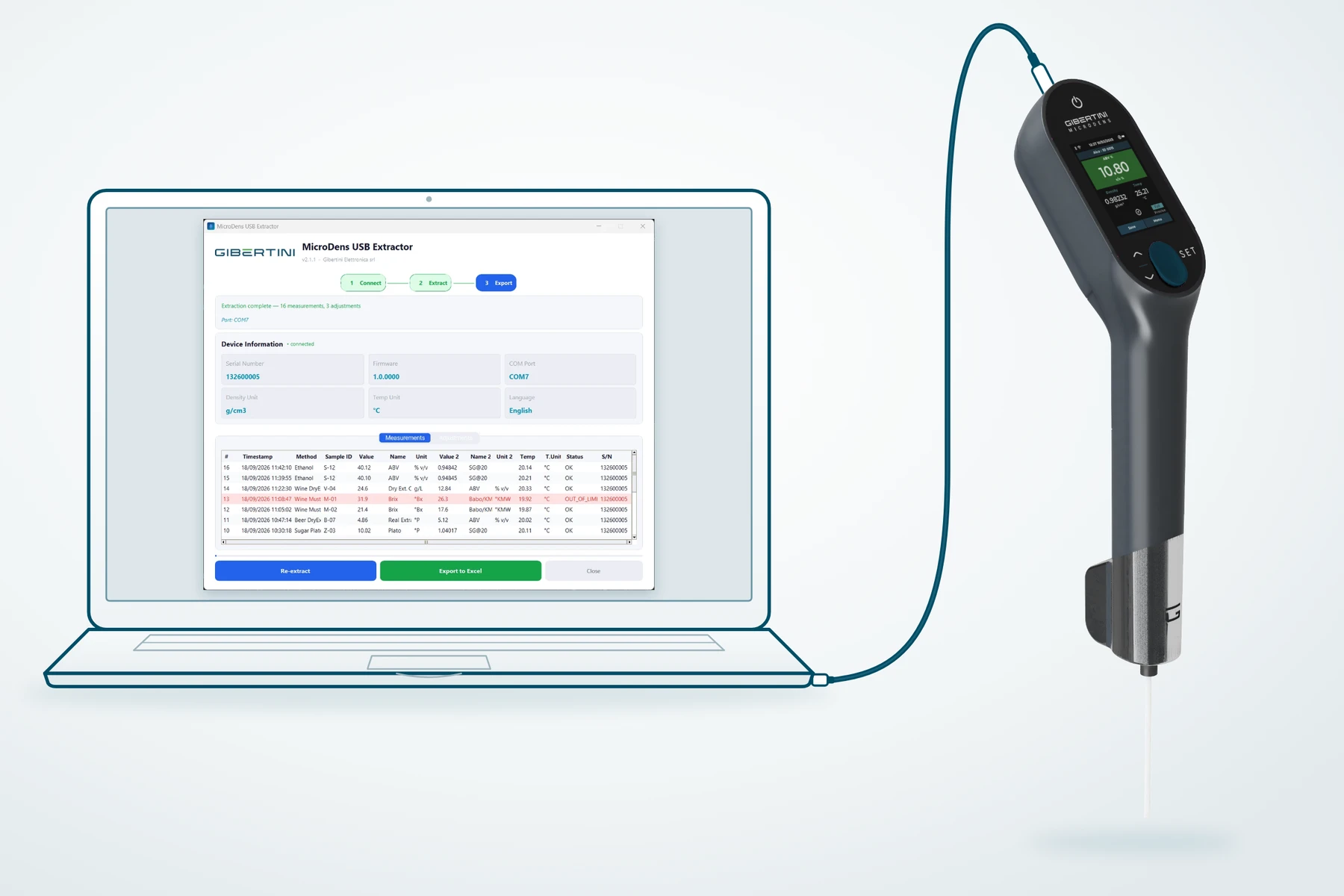
- Start MicroDens USB Extractor from the Start menu. The program finds the instrument and the status line shows “Connected — ready to extract data”.
If the cable is disconnected during extraction, the program does not receive the measurements. Do not touch the cable until the “Extraction complete” message appears.
- Click Extract Data. The status line shows “Extraction complete” with the number of measurements and adjustments, and the table fills.
- Click Export to Excel. The “Save Excel export” window opens.
- Click Save. Excel opens, the program writes the file and shows the “Export Complete” box with the file path.
- Click OK. The file is saved and the program stays open.
Chapter 2Install the program.
| Requirements | |
|---|---|
| Instrument | Gibertini MicroDens density meter, with the export destination set to Computer (chapter 3) |
| Connection | USB-C cable supplied with the instrument |
| System | Windows 10 or Windows 11, 64-bit |
| Excel | Microsoft Excel installed on the same PC: Excel writes the file |
| USB driver | Silicon Labs CP210x, included in the installer (below) |
| Installation | with administrator rights on the PC |
| Internet | not needed for use |
| Language | program in English, installer in Italian |
The installer is in Italian only. The steps below give each Italian label with its English meaning in parentheses.
Open the installer
- Download the installer from the download page.
- Double-click the downloaded file.
- If the “Windows protected your PC” window appears, click More info.
- Click Run anyway.
- If Windows asks whether to allow the app to make changes to your device, click Yes. The installer opens.
Complete the installation
Before starting, the installer is open on the “Contratto di licenza” page (license agreement).
- On the “Contratto di licenza” page, read the terms of use.
- Select Accetto i termini del contratto di licenza (I accept the terms of the license agreement).
- Click Avanti (Next).
- On the “Selezione cartella di installazione” page (installation folder), click Avanti. The program is installed in the proposed folder.
- If the “Selezione della cartella nel menu Avvio/Start” page (Start menu folder) appears, click Avanti.
- Optional: on the “Selezione processi aggiuntivi” page (additional tasks), select Crea icona sul desktop (create a desktop icon).
- Optional: on the “Selezione processi aggiuntivi” page, leave Installa il driver USB Silicon Labs CP210x (facoltativo, consigliato se Windows non riconosce lo strumento) selected. The label means: install the Silicon Labs CP210x USB driver, optional, recommended if Windows does not recognize the instrument. The page offers it only if the driver is not installed.
- Click Avanti.
- On the “Pronto per l'installazione” page (ready to install), click Installa (Install). When it finishes, “Installazione di MicroDens USB Extractor completata” (installation complete) appears.
- Click Fine (Finish). With the Avvia MicroDens USB Extractor box (start MicroDens USB Extractor) selected, the program starts.
The program is in the C:\Program Files\MicroDens USB Extractor folder. The Start menu shows MicroDens USB Extractor, Leggi Me (read me) and Disinstalla MicroDens USB Extractor (uninstall).
Install the CP210x USB driver
The driver is needed only if, with the cable connected, the program does not find the instrument (chapter 8). Normally the installer installs it, on the “Selezione processi aggiuntivi” page (above).
Alternatively, the driver is downloaded from the Silicon Labs website.
- Open the page silabs.com/software-and-tools/usb-to-uart-bridge-vcp-drivers.
- Download the CP210x driver for Windows.
- Install the driver following the Silicon Labs instructions.
- Disconnect and reconnect the USB-C cable. The program finds the instrument within a few seconds.
Chapter 3Set up the instrument.
To send measurements over the USB cable, the MicroDens needs its export destination set to Computer. The labels below are those of the display in English. With the instrument in Italian, the path is Menu > Impostazioni > Connessioni > Destinazione esport. > Destinazione > Computer.
- On the MicroDens, open Menu > Settings > Connections > Export destination.
- Select Destination.
- Select Computer. The display returns to the Export destination page and Computer appears next to Destination.
Chapter 4Connect the instrument.
- Connect the MicroDens to a USB port on the PC with the supplied USB-C cable.
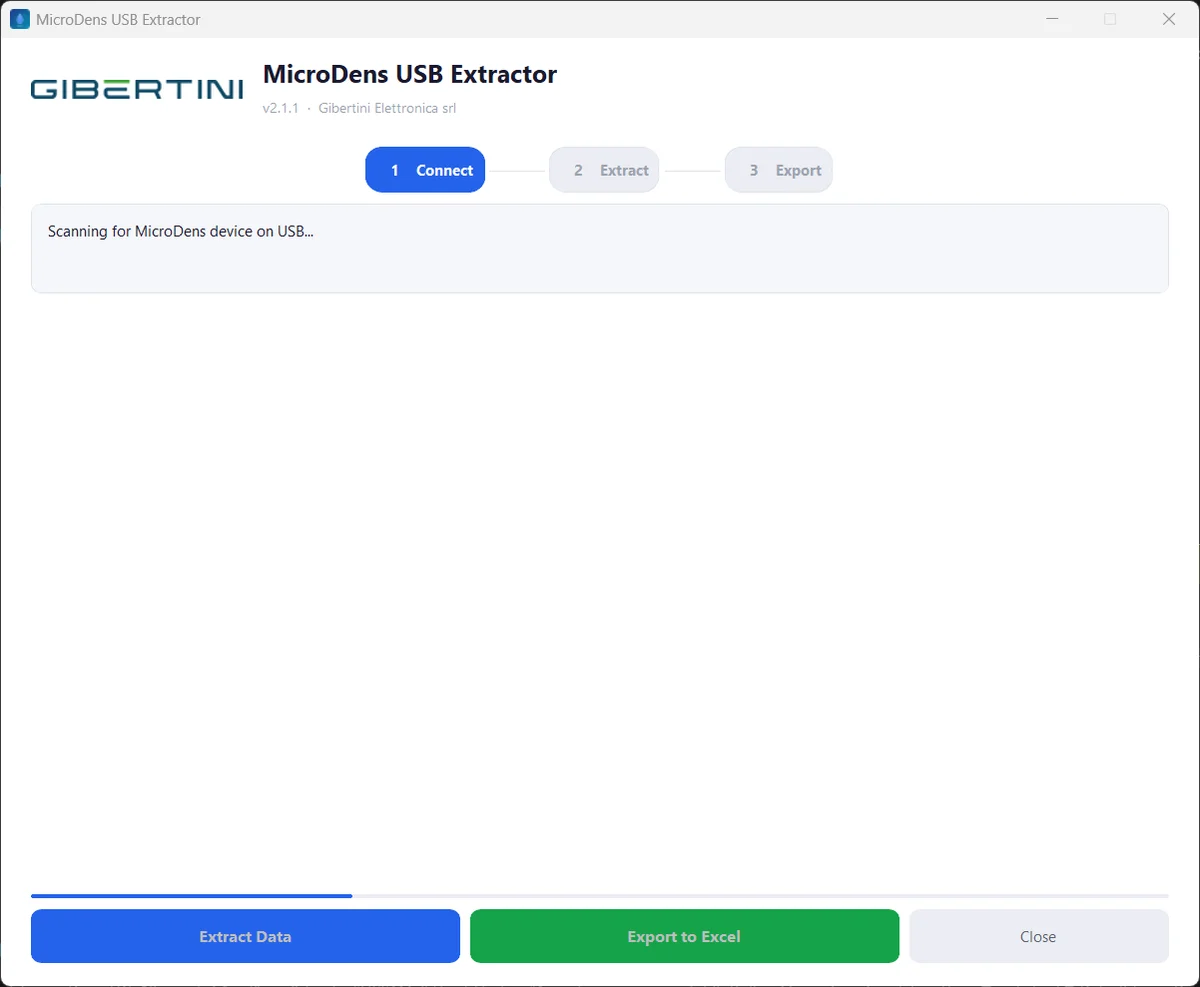
- Start MicroDens USB Extractor from the Start menu or the desktop icon. The status line shows “Scanning for MicroDens device on USB...”: the program looks for the instrument every 3 seconds.
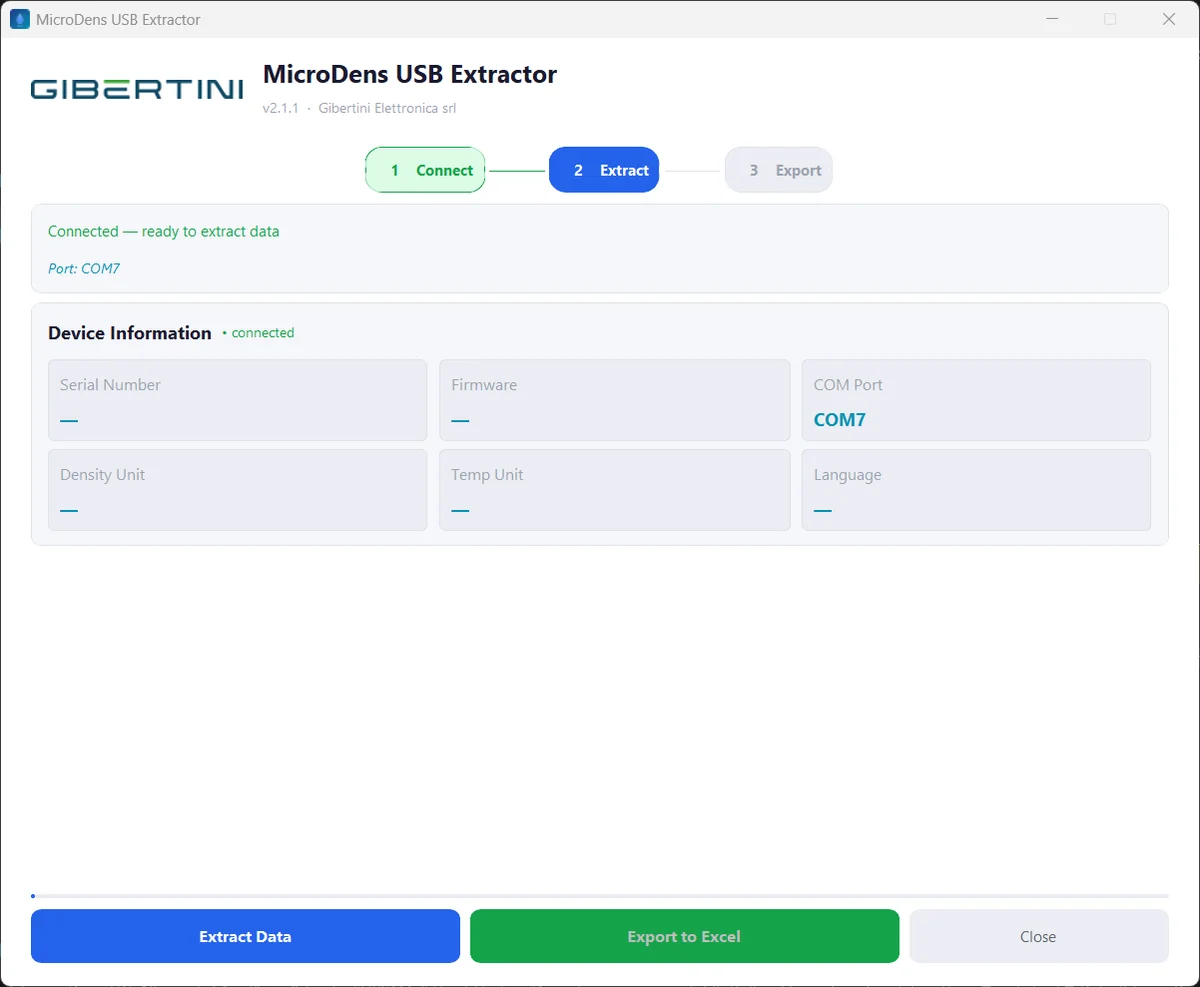
- Wait for the “Connected — ready to extract data” message. The Connect step turns green and Extract Data becomes available.
The Device Information panel shows the COM port. The other instrument data appears after extraction.
Free a busy port
If the status line shows “Port COMx is busy”, another program is using the instrument's port.
Close the other program, for example Arduino IDE, MicroDens Logger or a serial terminal. The program retries every 3 seconds and connects.
Select the port manually
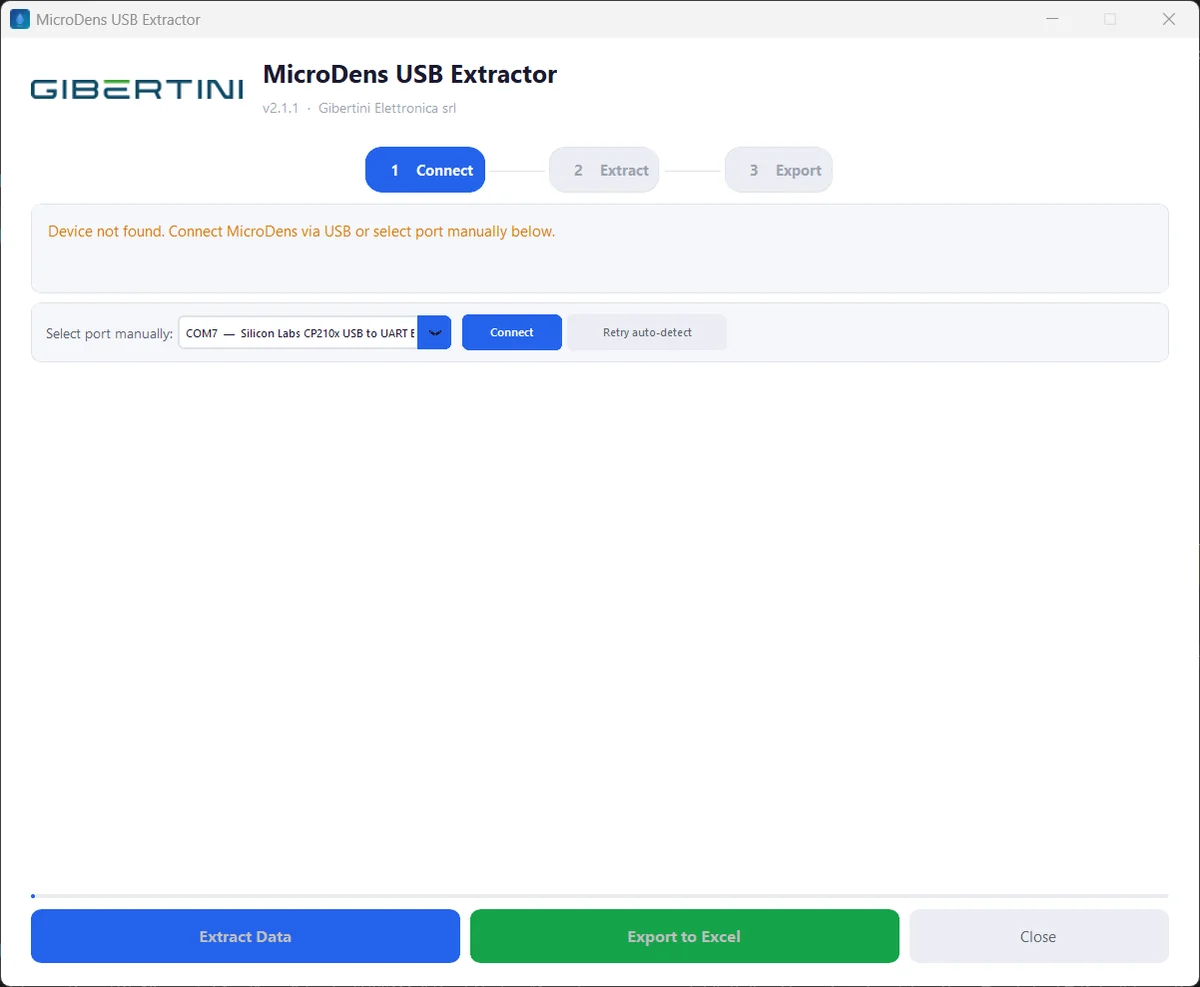
If the program has not found the instrument after 20 seconds, Select port manually appears. Automatic detection continues.
- In the port list, select the instrument's port.
- Click Connect. The status line shows “Connected to COMx — ready to extract”.
Retry auto-detect closes the selector and restarts automatic detection. Previously extracted measurements stay on screen and can still be exported.
Chapter 5Extract the measurements.
Before starting, the instrument is connected (chapter 4) and its export destination is set to Computer (chapter 3).
If the cable is disconnected during extraction, reading stops and the program does not receive the measurements. Do not touch the cable or the instrument until the “Extraction complete” message appears.
- Click Extract Data. The status line shows “Extracting data from device...”, then “Receiving data from device...”.
- Wait for the “Extraction complete” message, with the number of measurements and adjustments received. The Extract step turns green and Export to Excel becomes available.
If the instrument does not complete the transfer within 20 seconds, the program reports “Export timeout” (chapter 8).
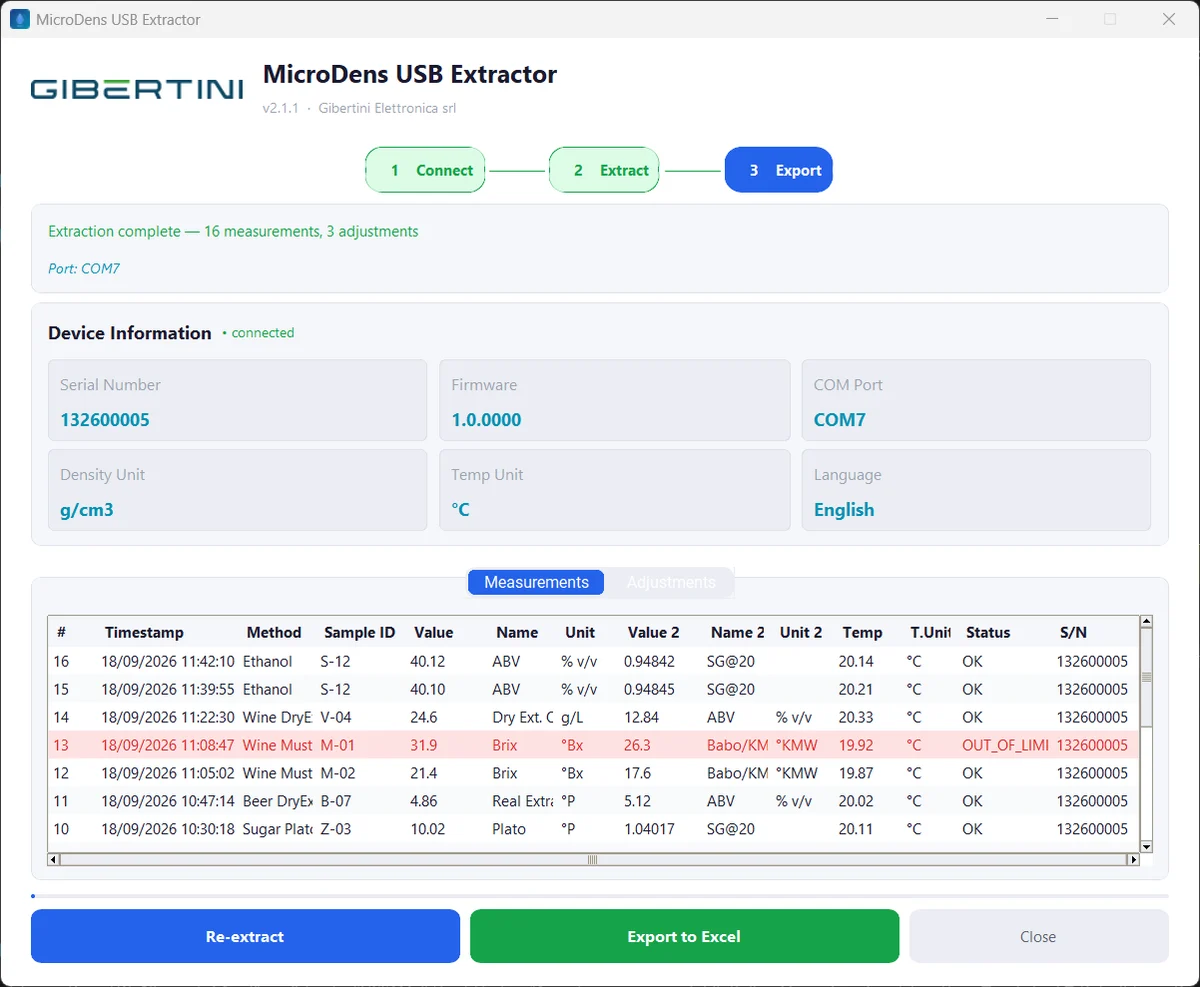
The Device Information panel fills in with serial number, firmware, density and temperature units and language set on the instrument. Below, the data received is split into two tabs:
- Measurements: one row per measurement. Measurements with status
OUT_OF_LIMITSare shown in red. - Adjustments: date, type, offset and operator of each adjustment.
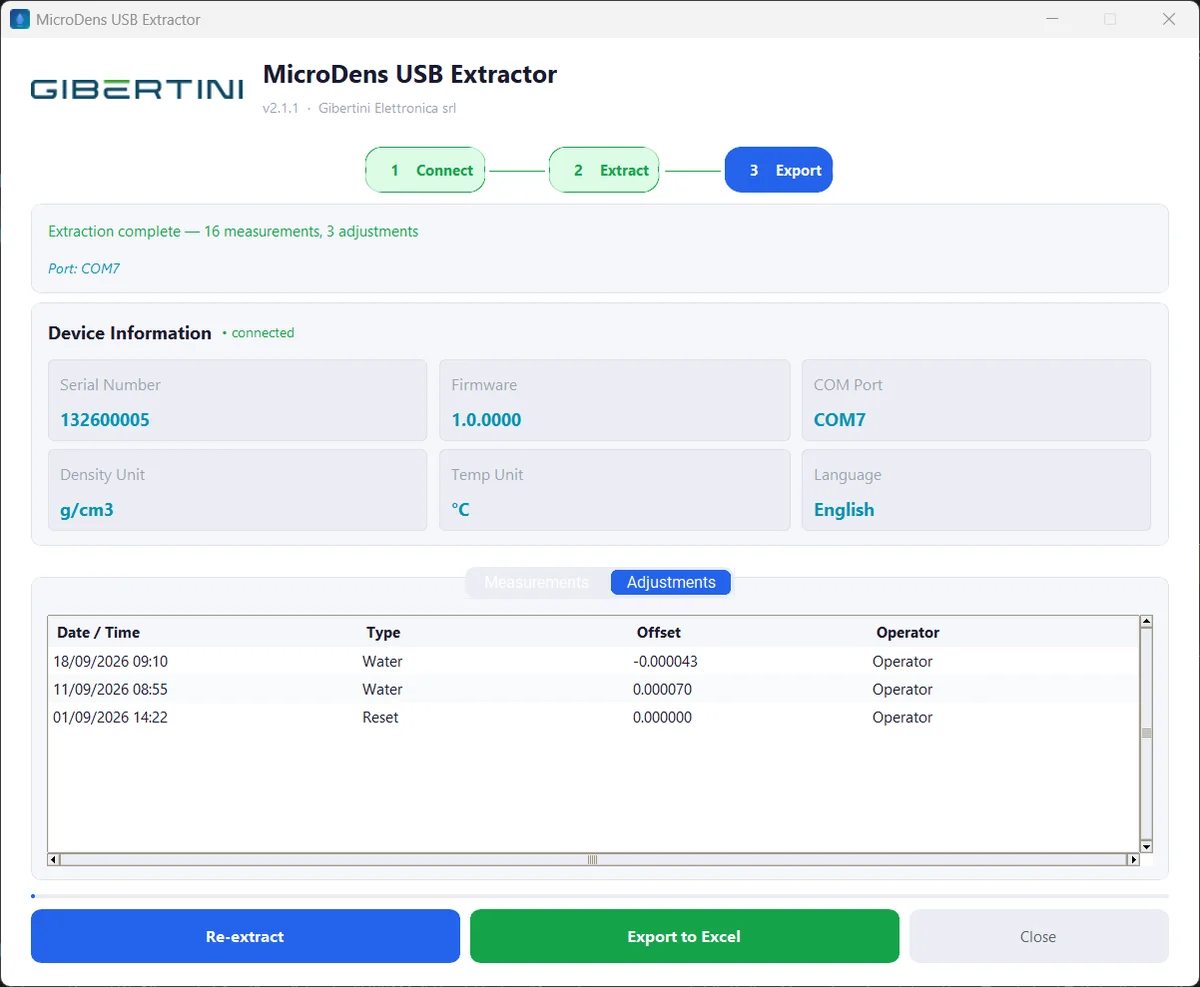
Read the instrument memory again
After the first extraction the button becomes Re-extract. The data on screen is replaced by the new data.
To read measurements saved on the instrument after the extraction, click Re-extract.
Chapter 6Export to Excel.
Before starting, the extraction is complete (chapter 5).
- Click Export to Excel. The “Save Excel export” window opens, with the name
MicroDens_Export_followed by date and time. - Optional: choose another folder or name. The proposed folder is the one used last time; the first time, it is Documents.
- Click Save. Excel opens and the program writes and saves the file. The status line shows “Export completed successfully!”.
- In the “Export Complete” box, with the number of measurements and adjustments and the file path, click OK. “Saved:” with the file name appears below the table.
The program stays open with the extracted data. To save it to another file without reading the instrument again, repeat the procedure from step 1.
Close the program
The program closes with Close, which is not available during extraction and export.
When the program closes, it also closes the Excel window opened by the last export, without asking to save. Unsaved changes in that window are lost. Save them in Excel before closing the program.
- If the file has been changed in Excel, save it in Excel.
- Click Close. The program closes. The exported file remains saved.
Chapter 7Excel file structure.
The .xlsx file contains two sheets, with headings in English. Methods, quantity names and units are those of the instrument: the program reports them as received.
“MicroDens USB Extractor” sheet
| Row | Content |
|---|---|
| 1 | title, with export date and time |
| 2 | instrument data: serial number, firmware, language, density unit, temperature unit |
| 3 | column headings |
| from 4 | one measurement per row; rows with status OUT_OF_LIMITS have a light red background |
| Column | Heading | Content |
|---|---|---|
| A | Timestamp | measurement date and time, dd/mm/yyyy hh:mm:ss |
| B | Method | measurement method set on the instrument |
| C | Sample ID | sample identifier |
| D · E · F | Param1 Value · Name · Unit | first quantity: value, name, unit |
| G · H · I | Param2 Value · Name · Unit | second quantity: value, name, unit |
| J · K | Temperature · Temp Unit | temperature and unit |
| L | Status | measurement status, for example OUT_OF_LIMITS |
| M | Serial Number | instrument serial number |
| N | Counter | progressive number of the measurement on the instrument |
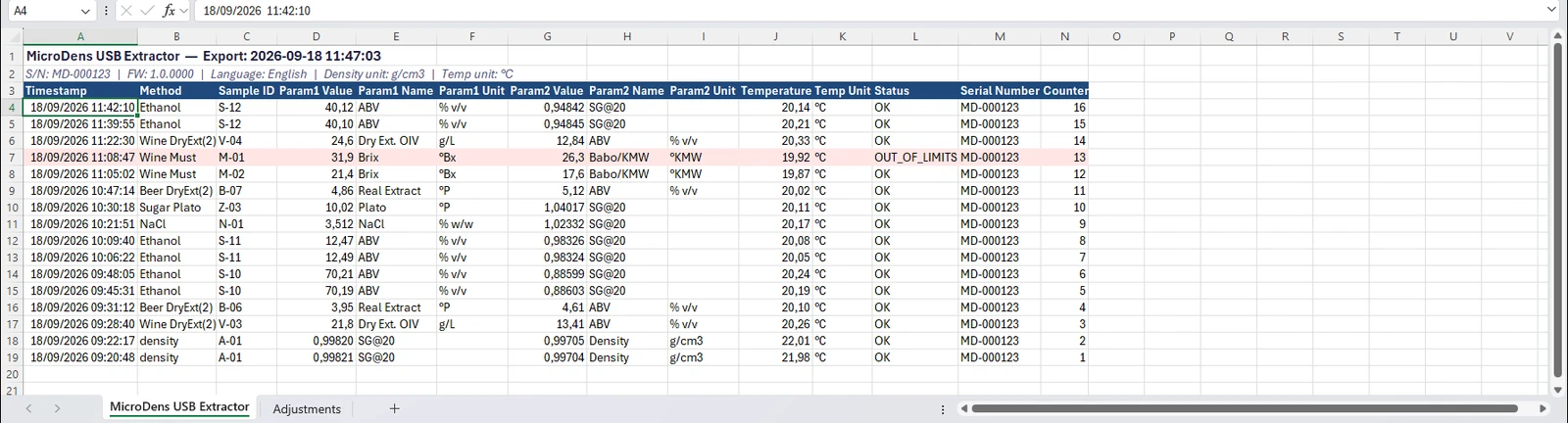
“Adjustments” sheet
One adjustment per row, in the columns Date/Time (dd/mm/yyyy hh:mm), Type, Offset and Operator.

Chapter 8Troubleshooting.
Headings give the message shown in the status line or in a program window. Causes are listed from most to least likely.
“Device not found. Connect MicroDens via USB or select port manually below.”
Cause: the cable is charge-only and does not carry data.
Remedy: connect the instrument with the supplied USB-C cable.
Cause: the PC's USB port does not respond.
Remedy: connect the cable to another USB port on the PC.
Cause: the CP210x USB driver is not installed.
Remedy: install the driver (chapter 2).
“Port COMx is busy — close other serial software. Retrying every 3s.”
Cause: another program is using the instrument's port.
Remedy: close Arduino IDE, MicroDens Logger or the open serial terminal. The program retries every 3 seconds and connects.
“Could not open COMx.”
Cause: the port selected manually is not the instrument's, or it is busy.
Remedy: select another port and click Connect. Alternatively, click Retry auto-detect.
“The device did not start the USB export. See instructions below.”
It appears together with the “Device Not Ready For Export” window, which gives the path Menu → Settings → Connections → Export destination → Destination = Computer.
Cause: the instrument's export destination is not set to Computer.
Remedy:
- Click OK in the “Device Not Ready For Export” window.
- Set the export destination to Computer (chapter 3).
- Click Extract Data.
Cause: no measurement is saved on the instrument.
Remedy: save at least one measurement on the instrument with Save. Then click Extract Data.
“Error: Export timeout after 20s.”
Cause: the instrument did not complete the transfer within 20 seconds, for example because the cable was disconnected.
Remedy: check the cable connection. Then click Extract Data.
“Connection lost — scanning...”
Cause: the cable was disconnected.
Remedy: reconnect the cable. The program finds the instrument again and reconnects automatically.
If the status line adds “Data already extracted can still be exported.”, the previously extracted measurements stay on screen. They can be exported with Export to Excel even before the cable is reconnected.
“Extract Error” window during extraction
Cause: communication with the instrument stopped during extraction, for example because the cable was disconnected.
Remedy:
- Click OK in the “Extract Error” window.
- Reconnect the cable. The program reconnects and the status line shows “Connected — ready to extract data”.
- Click Extract Data.
“Export error: …” and “Export Error” window
Cause: other Excel windows are open.
Remedy: close the Excel windows. Then click Export to Excel.
Cause: there is no write permission for the chosen folder.
Remedy: click Export to Excel and choose another folder, for example Documents.
Cause: Microsoft Excel is not installed.
Remedy: install Microsoft Excel on the same PC.
“Please select a COM port.”
Cause: no port was selected before clicking Connect.
Remedy: select a port in the list. Then click Connect.
Log file
The program records its activity in the file %LOCALAPPDATA%\MicroDens USB Extractor\logs\microdns_usb_extractor.log. When contacting support, attach this file to the message.
Chapter 9Update and uninstall.
The program does not check for updates automatically: new versions are on the download page.
- Close MicroDens USB Extractor with Close.
- Download the new version from the download page.
- Install it as described in chapter 2.
To be confirmed: installing over the previous version, without uninstalling it.
Uninstall the program
The uninstaller is in Italian.
- In the Start menu, click Disinstalla MicroDens USB Extractor (uninstall).
- To the question “Vuoi rimuovere completamente MicroDens USB Extractor e tutti i suoi componenti?” (remove the program and all its components), click Sì (Yes). When it finishes, “Disinstallazione di MicroDens USB Extractor completata” (uninstall complete) appears.
- Click OK.
Uninstalling removes the program. Exported Excel files stay in the folders where they were saved.
Chapter 10Support.
| Support | service@gibertini.com |
| Telephone | +39 02 3541434 |
| Hours | Monday–Friday, 9:00–18:00, Italian time |
| Updates | corrective and security updates, for 5 years |
| Security reports | software.gibertini.com/security |
The list of third-party components, with the license texts, is in the THIRD-PARTY-NOTICES.txt file in the program folder. It is also on the page software.gibertini.com/licenses.