Chapter 1Quick start.
Before you start: you need a computer with Windows 10 or 11, 64-bit, the MicroDens density meter, the supplied USB-C data cable and the .mds file received from Gibertini service.
- From the download page, download the installer.
- Install the program with the downloaded file, as described in chapter 2. At the end the program starts.
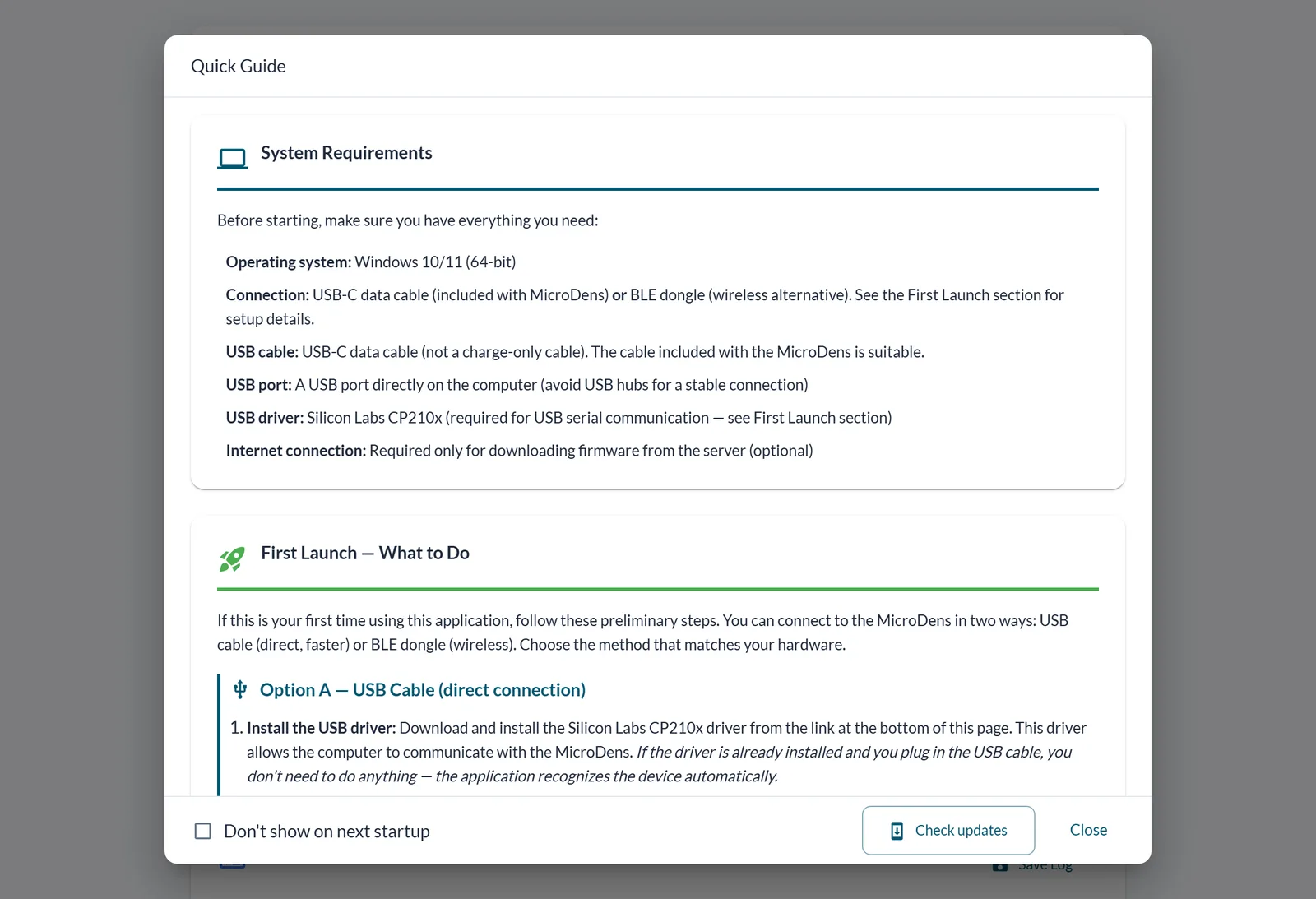
- If Windows asks for permission to install the USB driver, click Yes.
- In the Quick Guide window, click Close.
- Connect the MicroDens to a USB port of the computer with the USB-C cable.
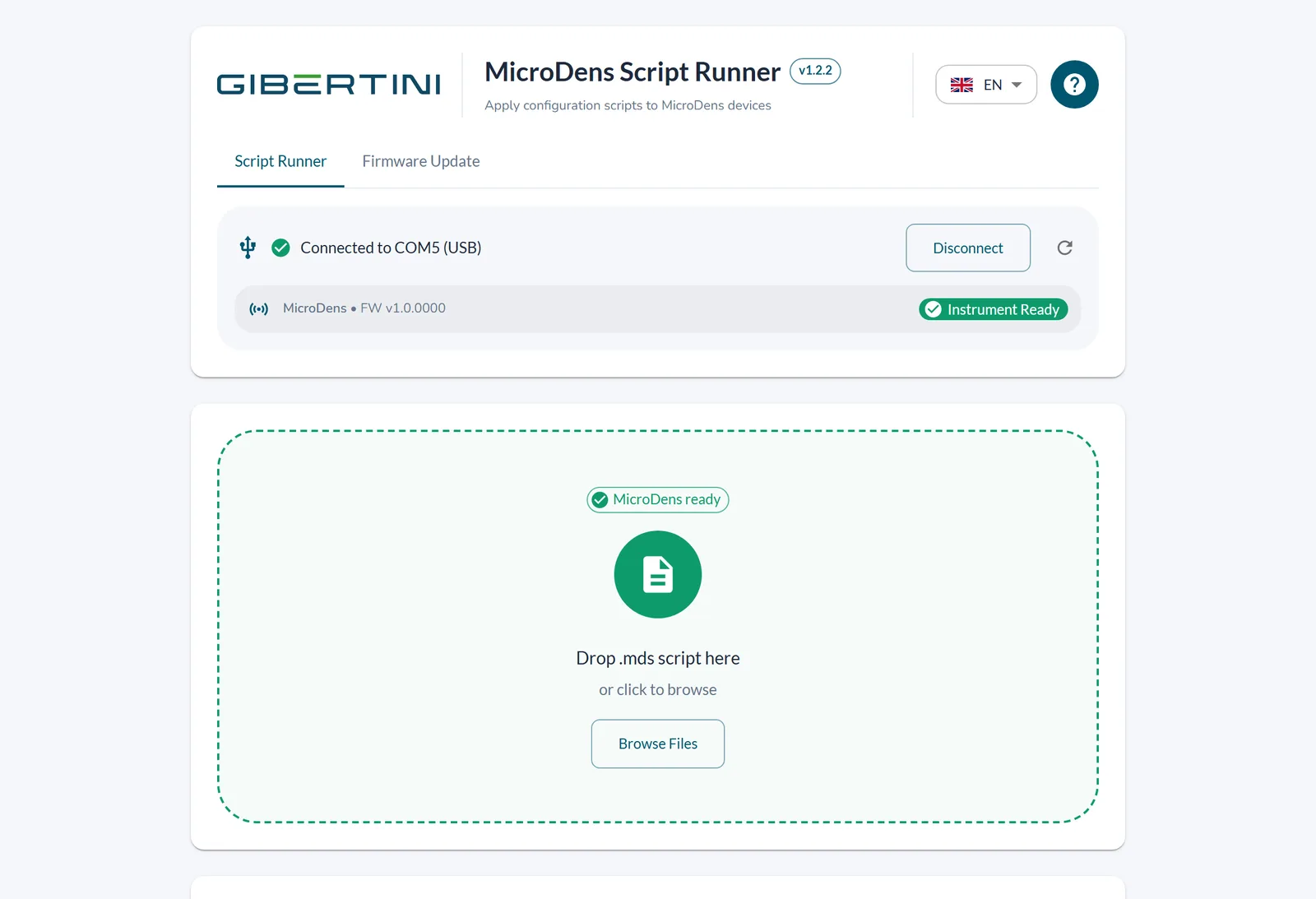
- Turn on the instrument. The program connects and shows Instrument Ready.
- Drag the
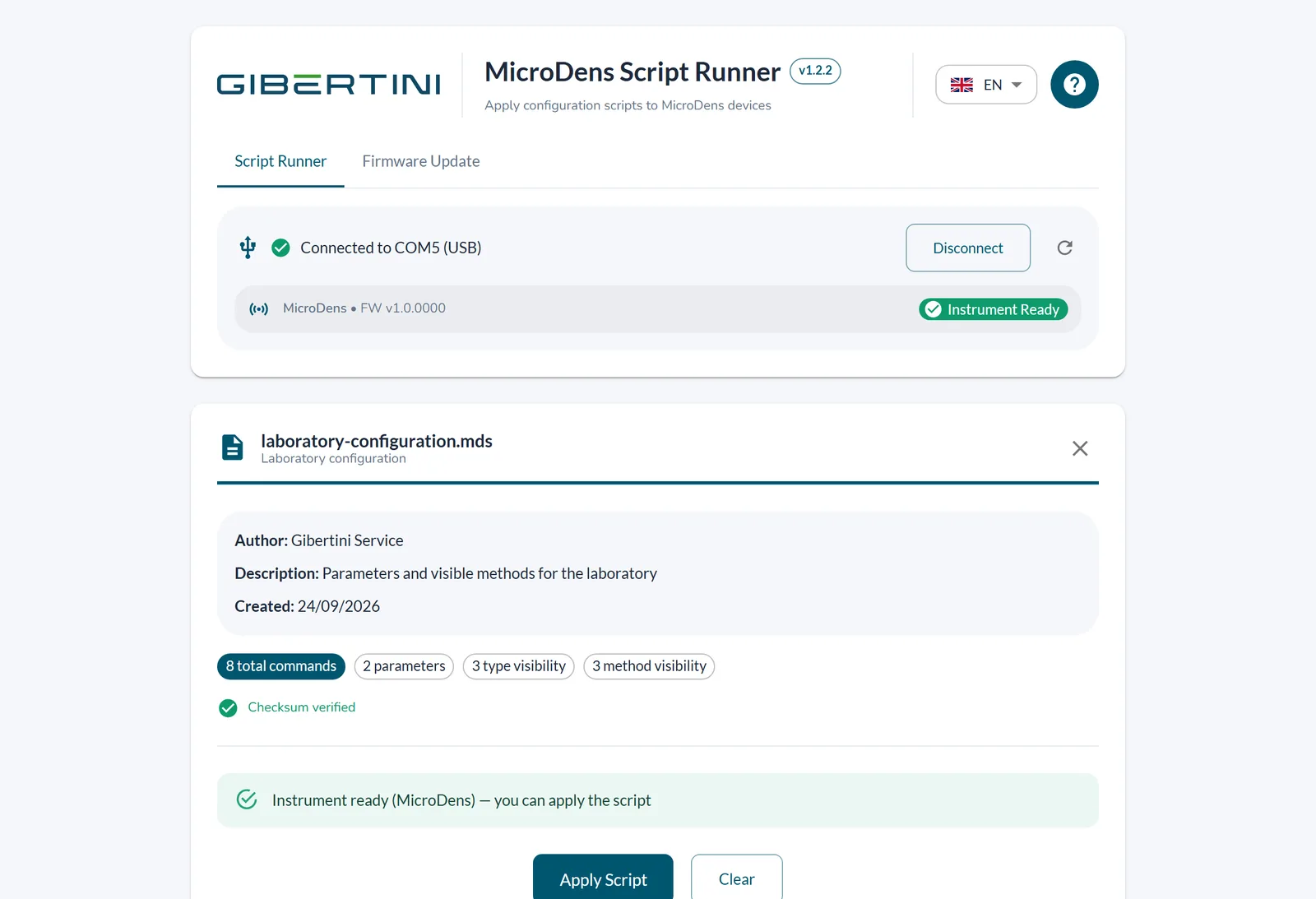
.mdsfile onto the Drop .mds script here area. The program shows the script summary.
If the instrument disconnects or the program closes while the script is being applied, the commands not yet executed do not reach the instrument and the configuration remains incomplete. Wait for the result before disconnecting.
- Click Apply Script. The progress bar shows the commands executed.
- Wait for the result. The program shows Script applied successfully!
Chapter 2Install the program.
| Requirement | Detail |
|---|---|
| Instrument | Gibertini MicroDens density meter |
| Connection | supplied USB-C data cable (not a charge-only cable), on a USB port of the computer, not through a hub, or the MicroDens BLE dongle |
| System | Windows 10 or Windows 11, 64-bit |
| USB driver | Silicon Labs CP210x, included: at first start Windows asks for an administrator's permission to install it |
| Internet | to download firmware and program updates |
| Language | program in Italian, English, French, Spanish and German |
- From the download page, download the file
MicroDens Script Runner Setup <version>.exe. - Open the downloaded file.
- If the “Windows protected your PC” window appears, click More info.
- Click Run anyway.
- Read the terms of use and click I Agree.
- Complete the following pages of the installer. On the last page, click Finish. The program starts.
- At first start, if Windows asks for administrator permission for the USB driver, click Yes. The program installs the Silicon Labs CP210x driver.
If the operator cancels the permission request, the program asks again at the next start. The driver is installed only once.
At every start the program opens the Quick Guide: see chapter 9.
Chapter 3Connect the instrument.
With the USB-C cable
- Connect the MicroDens to a USB port of the computer, not to a hub.
- Hold down the power button of the instrument for about 2 seconds. The display shows the main screen.
- Wait for the connection. The program looks for the instrument every 3 seconds and shows Connected to COM… (USB), then Instrument Ready.
- If the connection is not established automatically, select the COM port in the list and click Connect. If the port is not listed, click Refresh.
If the instrument turns off, the program shows The device appears to be powered off. Please turn on the instrument. When the instrument is turned back on, the connection resumes without further action.
With the MicroDens BLE dongle
- Plug the MicroDens BLE dongle into a USB port of the computer. The dongle needs no driver.
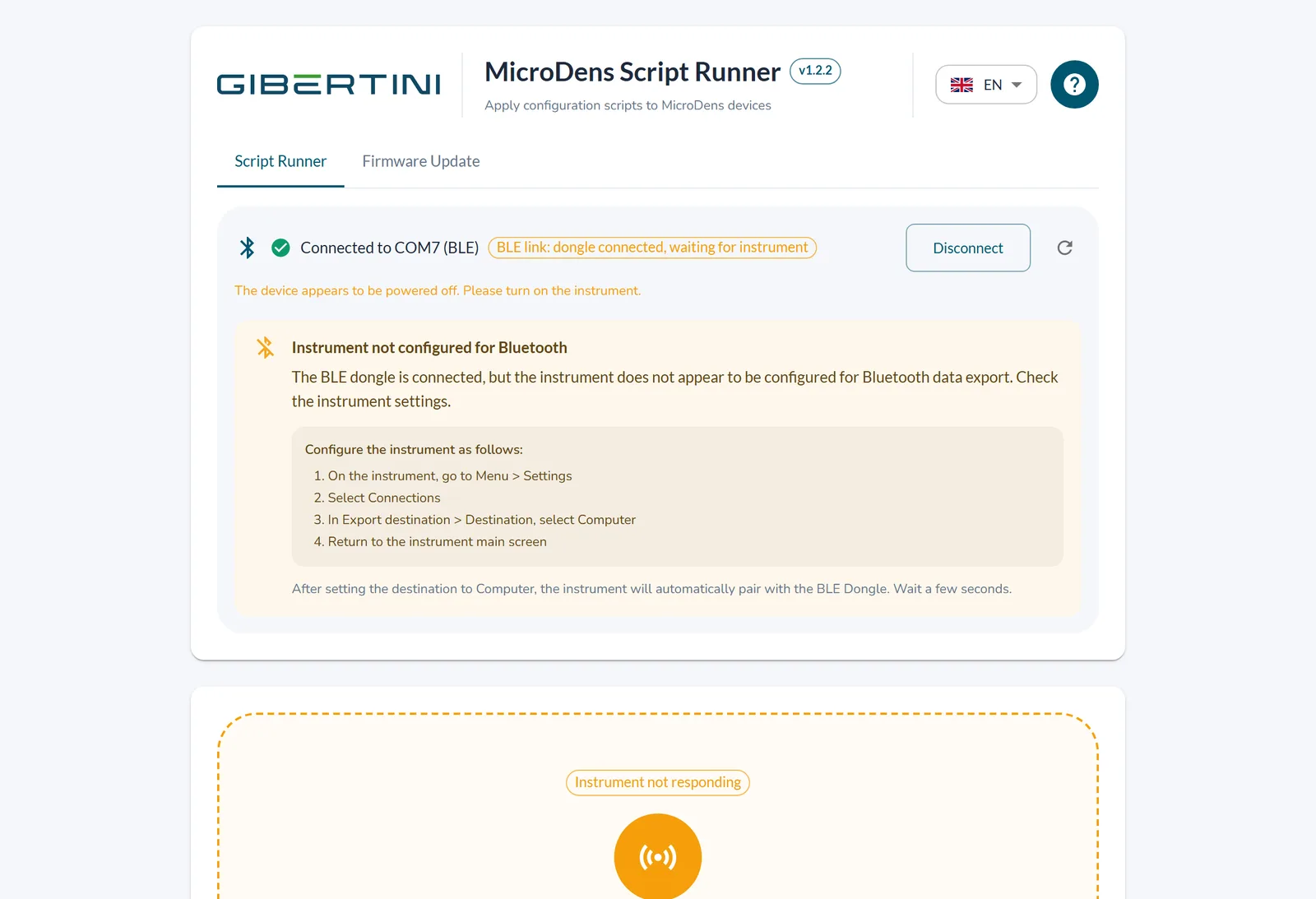
- Turn on the MicroDens. The program shows BLE link: dongle connected, waiting for instrument, then BLE link: instrument connected.
If Instrument not configured for Bluetooth appears, set the instrument to send data to the computer:
- On the instrument, open Menu > Settings > Connections > Export destination.
- In Destination, select Computer.
- Press the Back (arrow) key until the main screen appears. After a few seconds the instrument pairs with the dongle.
The MicroDens BLE dongle transfers data more slowly than the cable. Updating the MicroDens firmware requires the USB cable.
Chapter 4Load a script.
Before you start: you need the .mds file received from Gibertini service.
- Drag the
.mdsfile onto the Drop .mds script here area, or click Browse Files and select the file. The program shows the script summary. - In the summary, check the result of the checksum verification.
| Checksum result | Meaning |
|---|---|
| Checksum verified | the file is identical to the one prepared by Gibertini service |
| Checksum mismatch | the file changed after it was prepared: see Troubleshooting |
| No checksum in script | the file does not contain the integrity code |
To remove the loaded script, click the × next to the file name, or click Clear.
What the script contains
The .mds script contains the parameters, the type and method visibility and any user methods to be written to the instrument. The summary shows Author:, Description:, Created: and the number of commands by type.
Scripts for a single instrument
Scripts intended for a single instrument show Target Device:. Before writing, the program reads the serial number of the connected instrument.
If the serial number does not match, the program shows Script meant for another instrument and does not change the instrument: see Troubleshooting.
If the program cannot read the serial number, it shows Unable to verify the serial number: continue?
- Check that the connected instrument is the one shown in Target Device:.
- If it is the right instrument, click Continue anyway. Otherwise click Cancel. With Cancel the program writes no parameters.
Chapter 5Apply the script.
Before you start: the instrument is connected and the program shows Instrument ready (MicroDens) — you can apply the script. The script is loaded (chapter 4).
If the instrument disconnects or the program closes while the script is being applied, the commands not yet executed do not reach the instrument and the configuration remains incomplete. Wait for the result before disconnecting.
- Click Apply Script. The progress bar shows the commands executed out of the total. The Execution Log lists each command.
- Wait for the result. The program shows one of the messages in the table.
- Optional: to keep the Execution Log, click Save Log.
- In the save window, choose the folder and click Save. The program saves the file
<script name>_log_<date>.txt.
| Result | Meaning |
|---|---|
| Script applied successfully! | the program executed all commands |
| Script applied with some errors | some commands did not complete: see Troubleshooting |
| Script execution failed | the run stopped: see Troubleshooting |
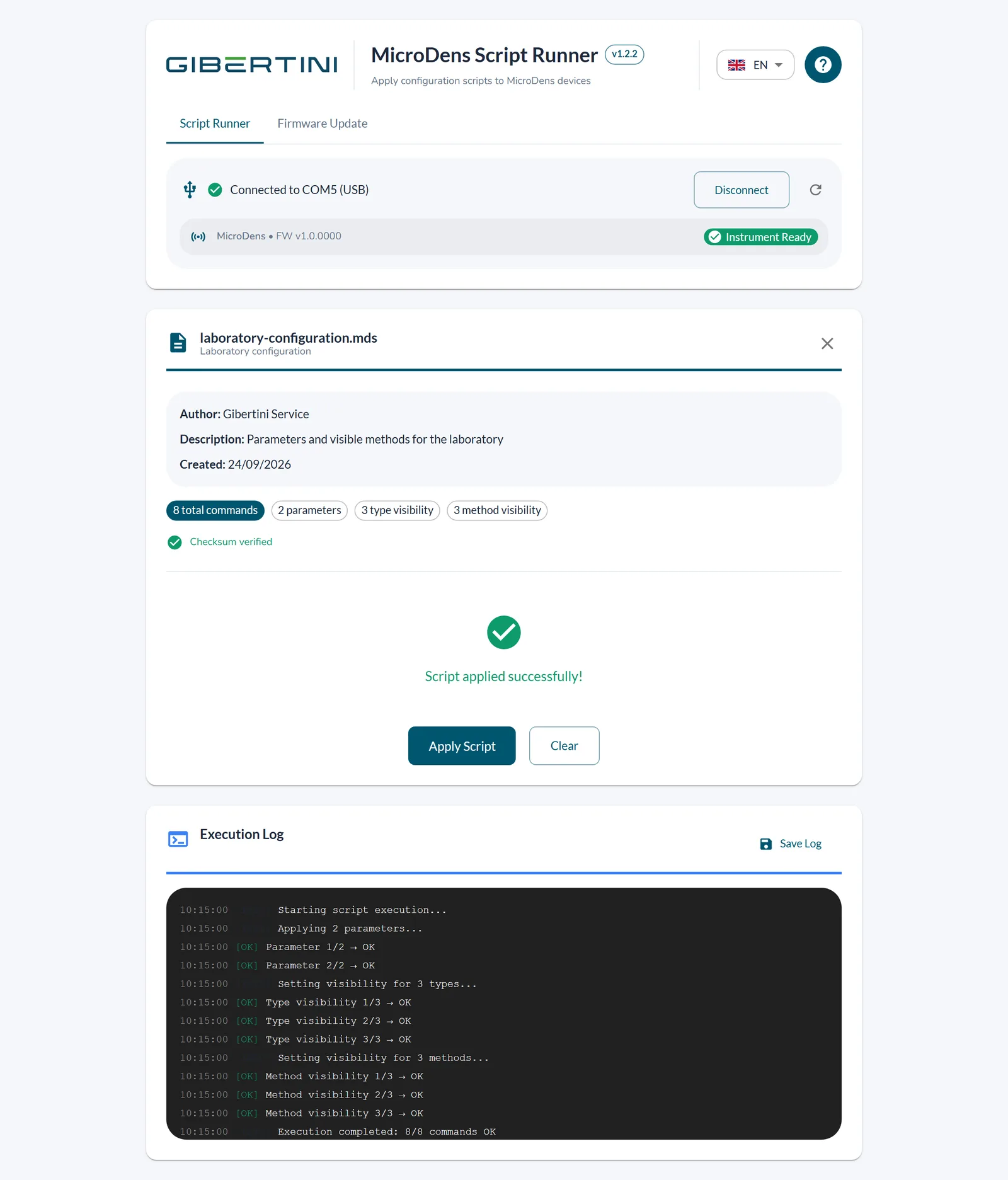
The changes remain in the instrument memory after it is turned off; no restart is needed. The same script can be applied more than once: the program rewrites the parameters with the same values.
Chapter 6Update the MicroDens firmware.
Before you start: the instrument is on, with the battery at least 50% charged. The USB cable connects the instrument directly to the computer; the MicroDens BLE dongle is not used. The computer is connected to the internet, to download the firmware.
- Click the Firmware Update tab. The program closes the connection of the Script Runner tab.
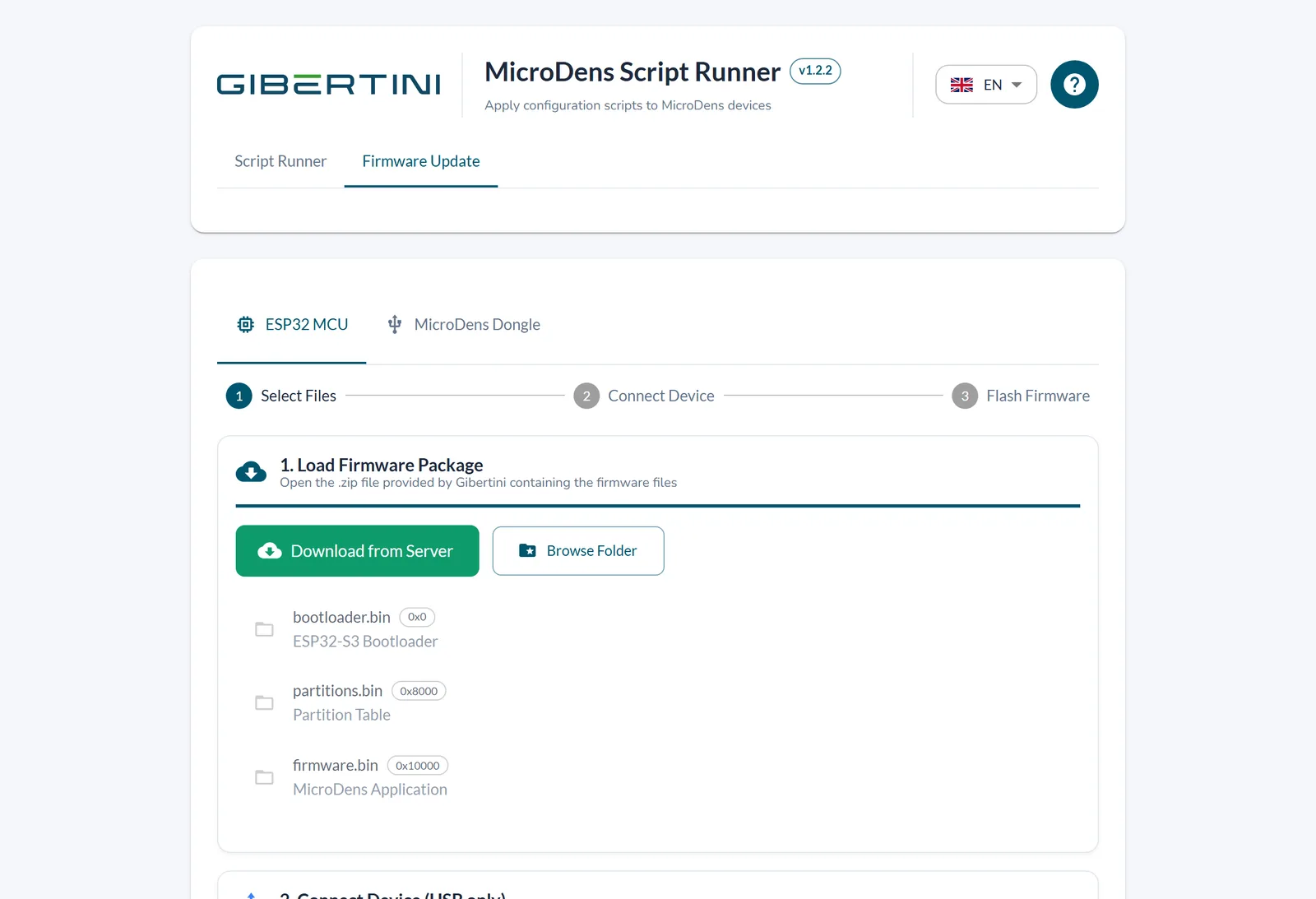
- Click ESP32 MCU. The program downloads the latest firmware from the Gibertini server and checks its integrity.
- Optional: if the download does not start, in 1. Load Firmware Package click Download from Server.
- Optional: to use a firmware received from Gibertini service, click Browse Folder and select the firmware folder.
- Connect the MicroDens with the USB cable and turn it on. The program connects and shows the Ready to Flash! window.
- If the window does not appear, in 2. Connect Device (USB only) click Select USB Port & Connect.
- In the list, select the MicroDens.
The folder of a firmware received from Gibertini service contains bootloader.bin, partitions.bin and firmware.bin.
If the USB cable comes loose during the update, the instrument may become unusable. Do not disconnect the cable or close the program until the message Firmware Updated Successfully! appears.
- Click Start Flash. The update takes about 1–2 minutes.
- When Firmware Updated Successfully! appears, click Close.
- Turn the instrument off and on again. The instrument starts with the new firmware.
Erase Flash erases the entire firmware memory of the instrument, irreversibly. Use it only when instructed by Gibertini service.
Chapter 7Update the dongle firmware.
Before you start: the computer is connected to the internet, to download the firmware.
- Click the Firmware Update tab.
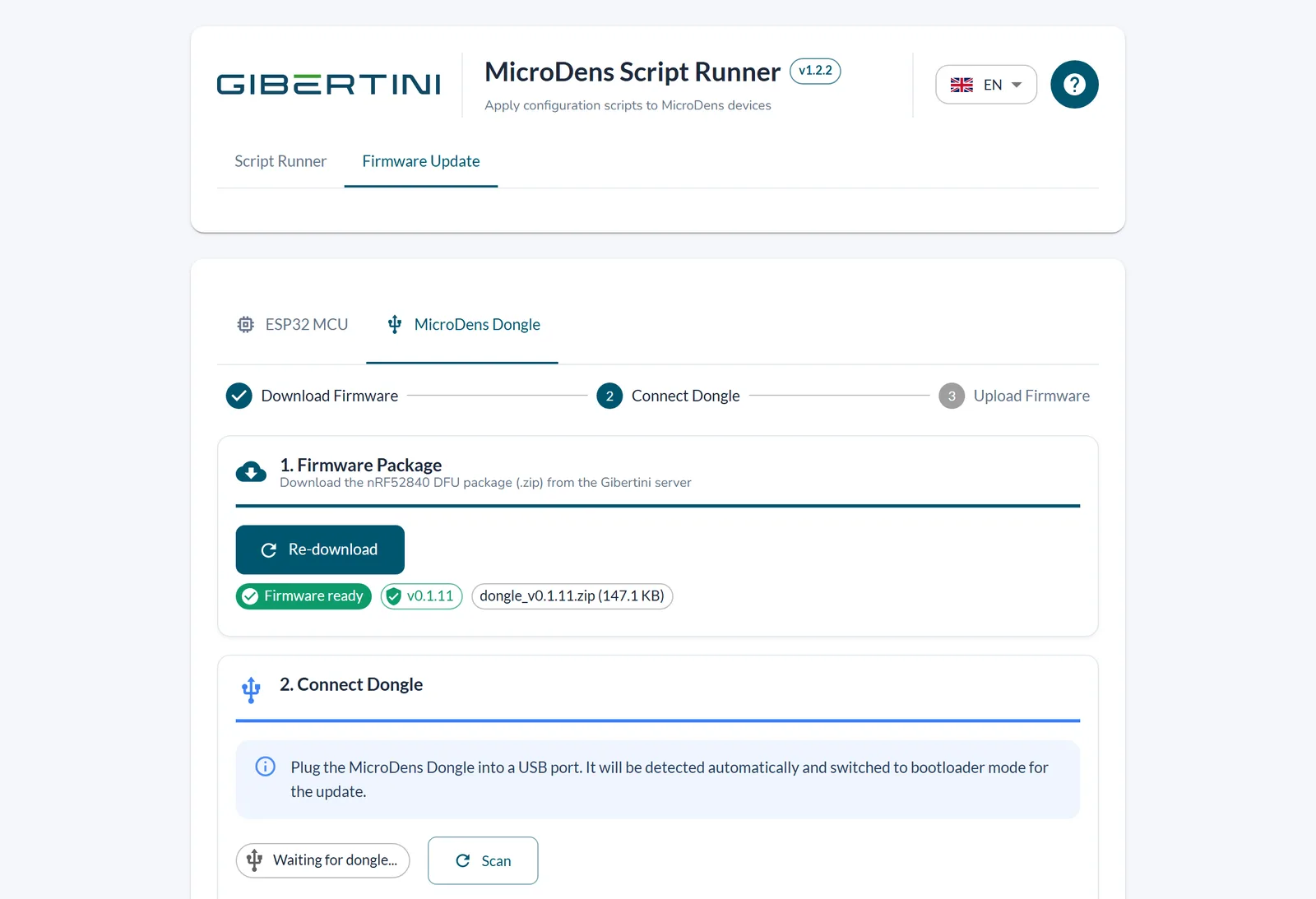
- Click MicroDens Dongle. The program downloads the firmware from the Gibertini server and shows Firmware ready.
- Optional: if the download does not start, click Download from Server.
- Plug the MicroDens BLE dongle into a USB port of the computer. The program detects it, prepares it for the update and shows Dongle detected on COM…
- If the program does not detect the dongle, click Scan.
If the dongle comes loose during the upload, it may require a manual recovery. Do not unplug it until the message Dongle Firmware Updated! appears.
- Click Start Upload. The upload takes about 30 seconds.
- Wait for Dongle Firmware Updated! The dongle restarts and reconnects on a new COM port.
Chapter 8Update the program.
At startup the program checks whether a new version exists. If it does, it opens the Update available window.
- In the Update available window, click Download update. The program downloads the new version and shows Update ready to install.
- Click Install & restart. The program closes, installs the new version and restarts.
With Later, the program installs the downloaded version when it closes.
Check for updates on request
- Click ? at the top right. The program opens the Quick Guide.
- Click Check updates. The program shows You are up to date (v…) or New version available: v…
Chapter 9Language and Quick Guide.
Change the language
In the language menu at the top right, select Italian, English, French, Spanish or German. The interface changes language and the program retains the choice.
At first start the program uses the Windows language.
Open or hide the Quick Guide
To open the guide, click ? at the top right.
To stop it opening at every start, select Don't show on next startup.
Chapter 10Troubleshooting.
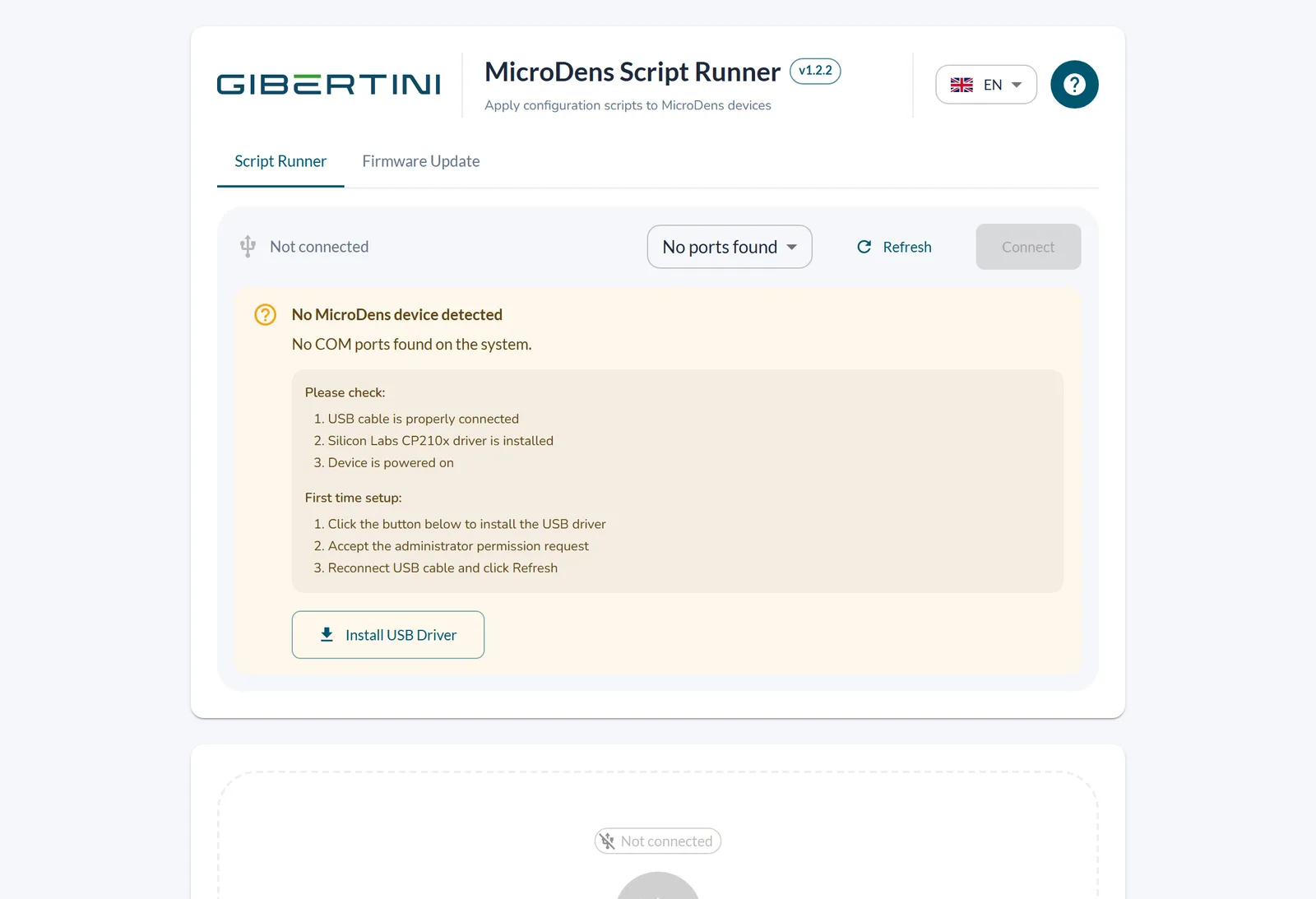
“No MicroDens device detected”
Cause: the cable is not connected, or it is a charge-only cable.
Remedy: connect the supplied USB-C data cable to a USB port of the computer.
Cause: the instrument is off.
Remedy: turn on the instrument.
Cause: the Silicon Labs CP210x driver is not installed.
Remedy:
- Click Install USB Driver.
- In the Windows permission request, click Yes. The program shows Driver installed successfully.
- Unplug and reconnect the USB cable.
- Click Refresh. The MicroDens COM port appears in the list.
“The device appears to be powered off. Please turn on the instrument.”
Cause: the cable is connected but the instrument is off or restarting.
Remedy: turn on the instrument. The connection resumes automatically and the program shows Device is powered on and ready!
“Device disconnected unexpectedly. Waiting for reconnection...”
Cause: the cable came loose, or the instrument is connected to a USB hub.
Remedy: connect the cable directly to a USB port of the computer. The program reconnects automatically.
“Instrument not configured for Bluetooth”
Cause: the instrument is not set to send data to the computer.
Remedy: on the instrument, in Menu > Settings > Connections > Export destination > Destination, select Computer (chapter 3).
“Instrument not identified — disconnect and reconnect”
Cause: the instrument did not answer the reading of model and firmware.
Remedy:
- Click Disconnect.
- Click Connect. The program shows Instrument ready (MicroDens) — you can apply the script.
“Script meant for another instrument”
Cause: the script is locked to another instrument; the serial number of the connected instrument does not match.
Remedy:
- Click OK. The program has not changed the instrument.
- Connect the instrument shown in Target Device:, or ask Gibertini service for a script for the connected instrument.
“Checksum mismatch”
Cause: the .mds file changed after it was prepared.
Remedy: ask Gibertini service for a new copy of the file.
“Script applied with some errors”
Cause: some commands did not complete.
Remedy:
- Click Save Log and save the file.
- Click Apply Script to apply the same script again.
- If the result does not change, send the saved file to Gibertini service.
“Script execution failed”
Cause: the run stopped, for example because the connection with the instrument was lost.
Remedy:
- Click Save Log and save the file.
- Wait until the program shows Instrument Ready.
- Click Apply Script.
The script run does not progress
Cause: the instrument does not respond to the commands.
Remedy: wait at least 2 minutes, then carry out the steps in the order given until the problem is solved.
- Click Disconnect.
- Click Connect.
- Turn the instrument off and on again.
- Unplug and reconnect the USB cable.
- Close and reopen the program.
- If the problem persists, save the Execution Log with Save Log and contact support.
“Failed to download firmware from server”
Cause: the computer is not connected to the internet.
Remedy: connect the computer to the internet and click Download from Server. Alternatively, load the firmware received from Gibertini service with Browse Folder (chapter 6).
The instrument does not restart after the firmware update
Remedy: press the RESET button of the instrument, or disconnect and reconnect the battery.
“Dongle not detected. Make sure it is plugged into a USB port.”
Cause: the dongle is not plugged in, or the program has not detected it yet.
Remedy: plug the dongle into a USB port of the computer and click Scan.
“Update check failed”
Cause: the computer is not connected to the internet.
Remedy: connect the computer to the internet and click Check updates in the Quick Guide.
Chapter 11Uninstall the program.
- In Windows, open Settings > Apps > Installed apps (in Windows 10: Settings > Apps > Apps & features).
- Select MicroDens Script Runner.
- Click Uninstall.
- Click Uninstall to confirm. Windows removes the program.
Uninstalling does not delete the .mds files or the saved Execution Logs.
Chapter 12Support.
service@gibertini.com · +39 02 3541434 · Monday–Friday, 9:00–18:00, Italian time.
Updates for 5 years. Security reports: software.gibertini.com/security.
Gibertini Elettronica S.r.l. — Via Bellini, 37 — 20026 Novate Milanese (MI), Italy.
With the request, attach the Execution Log saved with Save Log and state the program version, shown next to the title in the window.