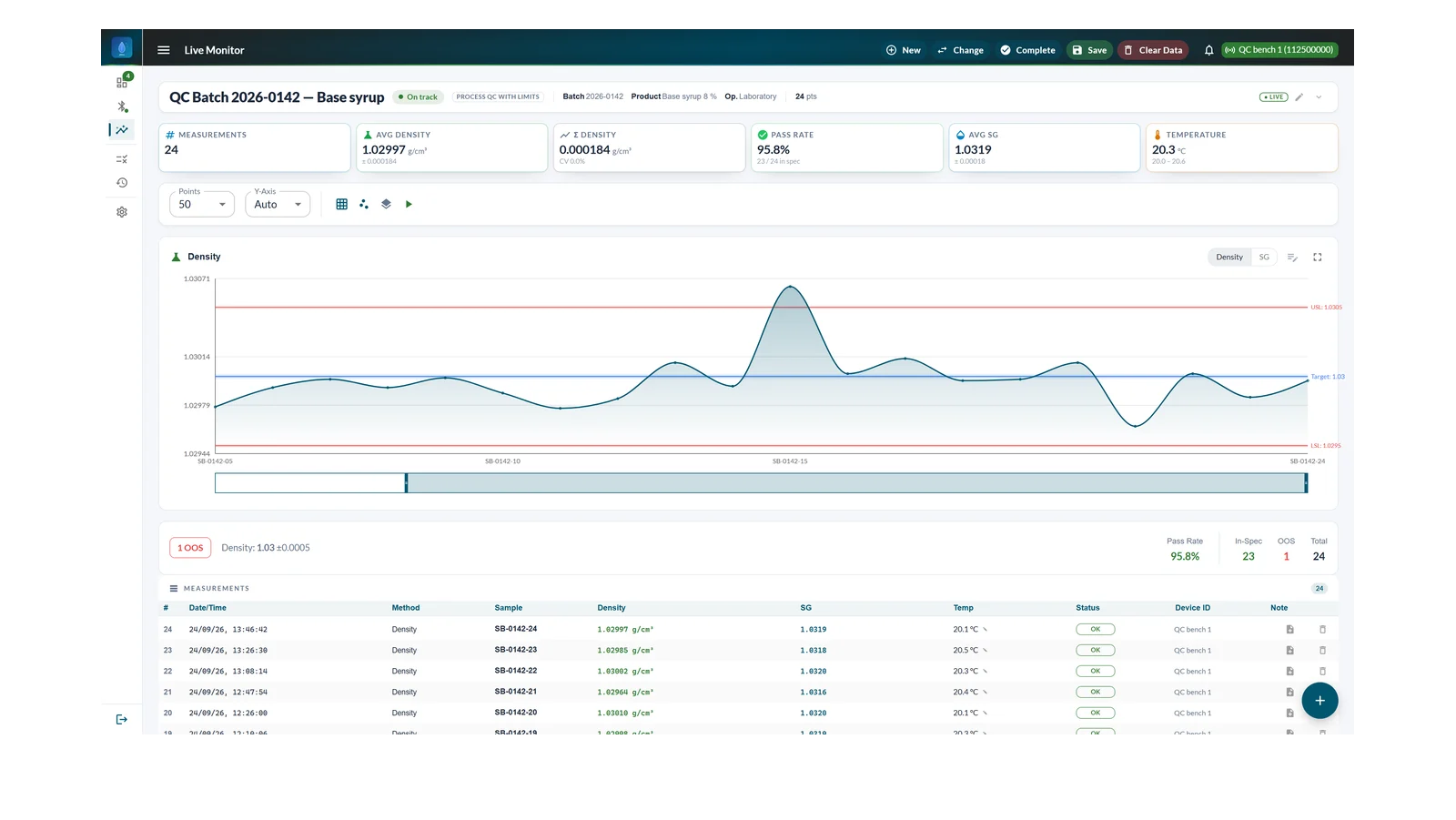
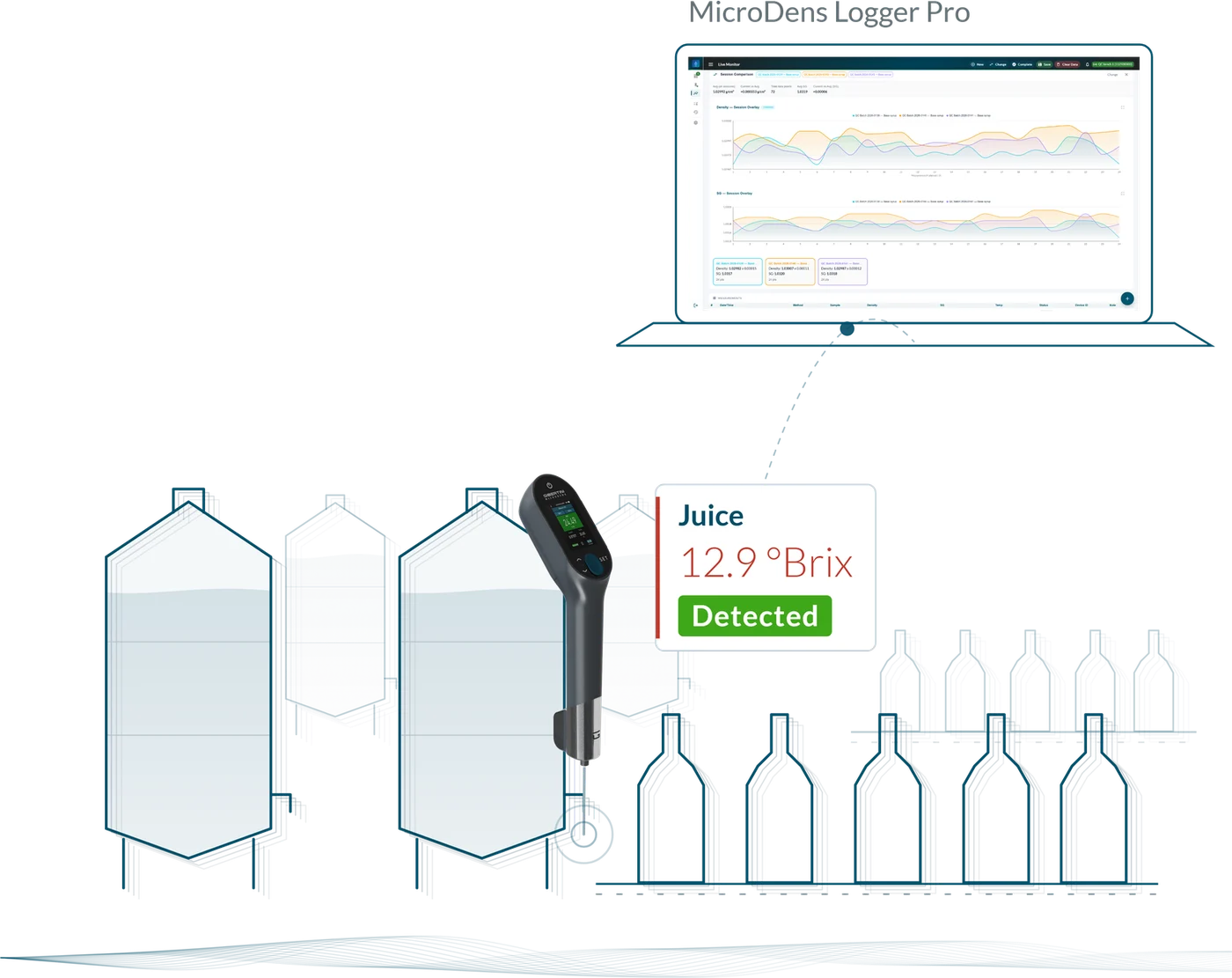
Each reading saved on the MicroDens density meter enters the active Logger Pro session with date, time and the instrument serial number; the chart and the result against tolerance update immediately. The Fermentation module follows wine and beer fermentation.
MicroDens readings are collected in separate sessions, one per batch or per check, with statistics, evaluation against tolerance and reports. No value is copied by hand from the display. Logger Pro is intended for quality control and production laboratories, wineries and breweries.
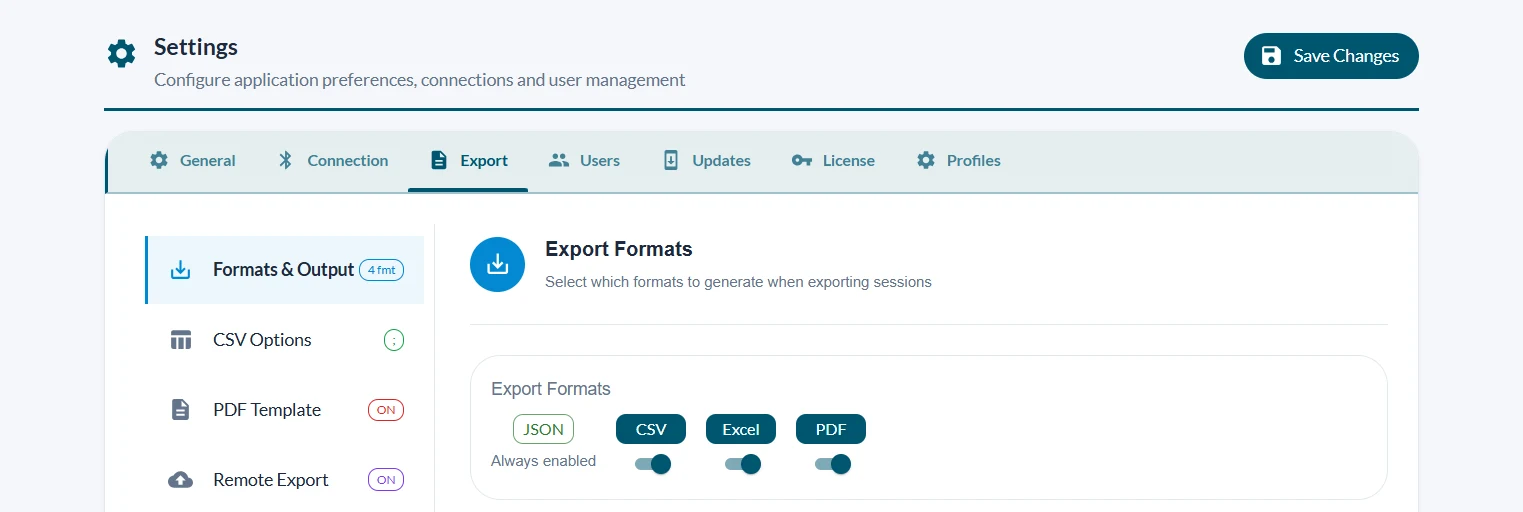
In History, each session can be searched by batch, product or operator and exported to Excel, PDF or CSV.
Time Series, with target and limits, for the trend of a process; Grouped, with one bar per batch and the standard deviation; Overlay, for several samples on the same axes.
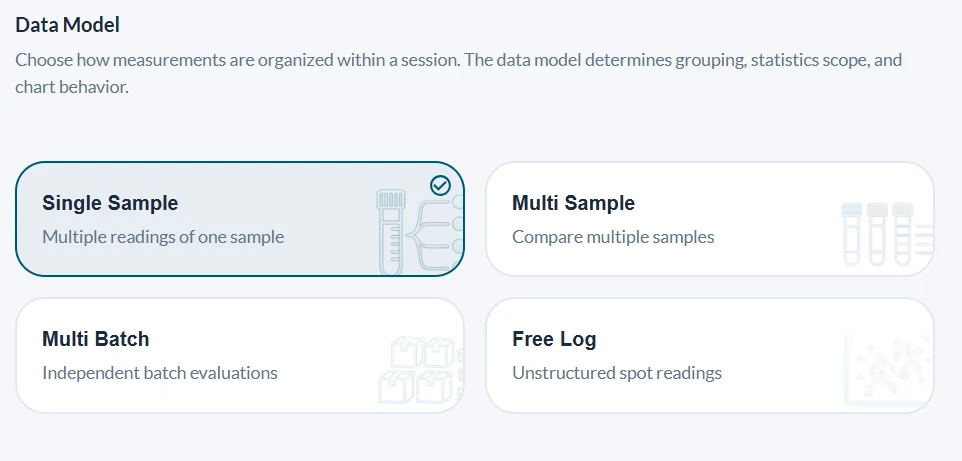
Each method sets the data model, statistics, chart and QC evaluation: setup is immediate and every function of the program is available from the first session.
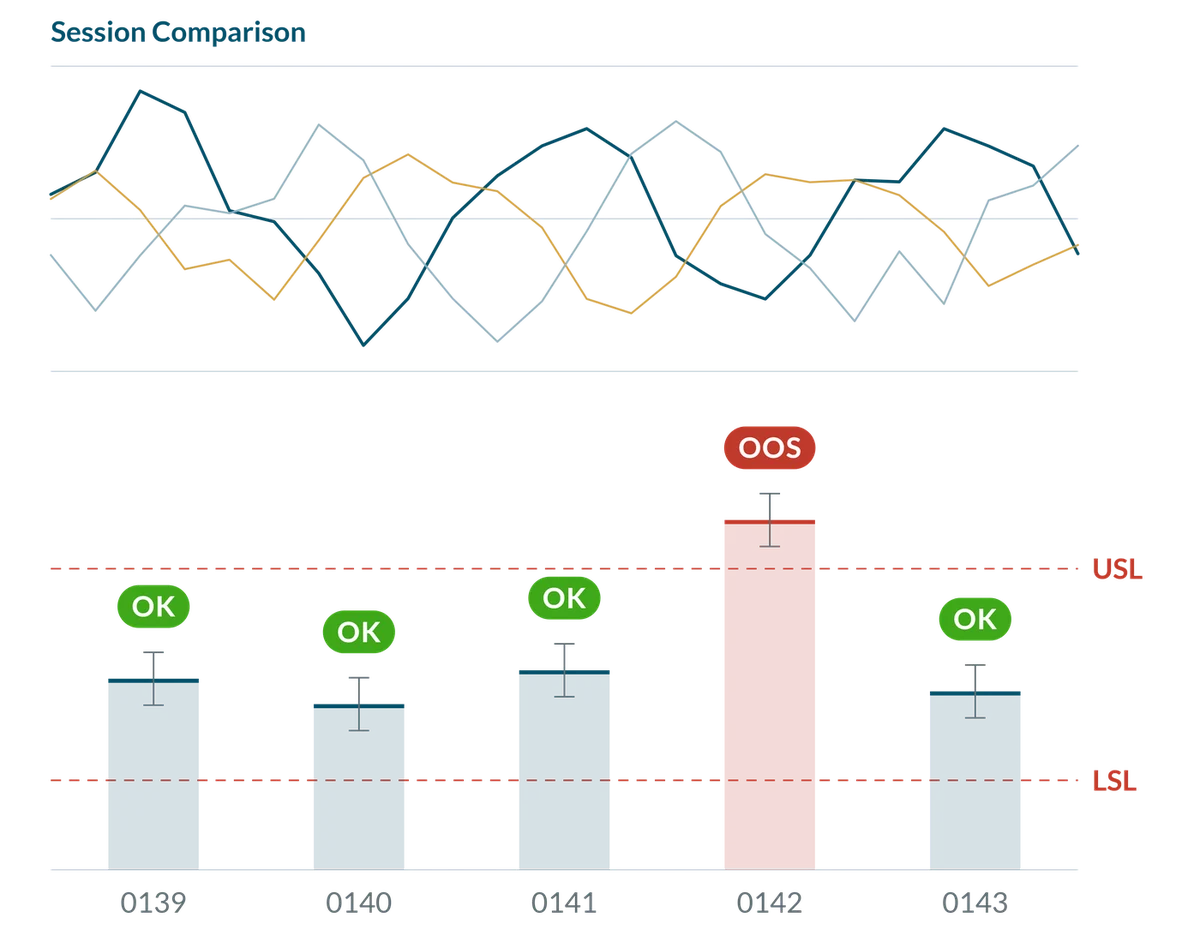
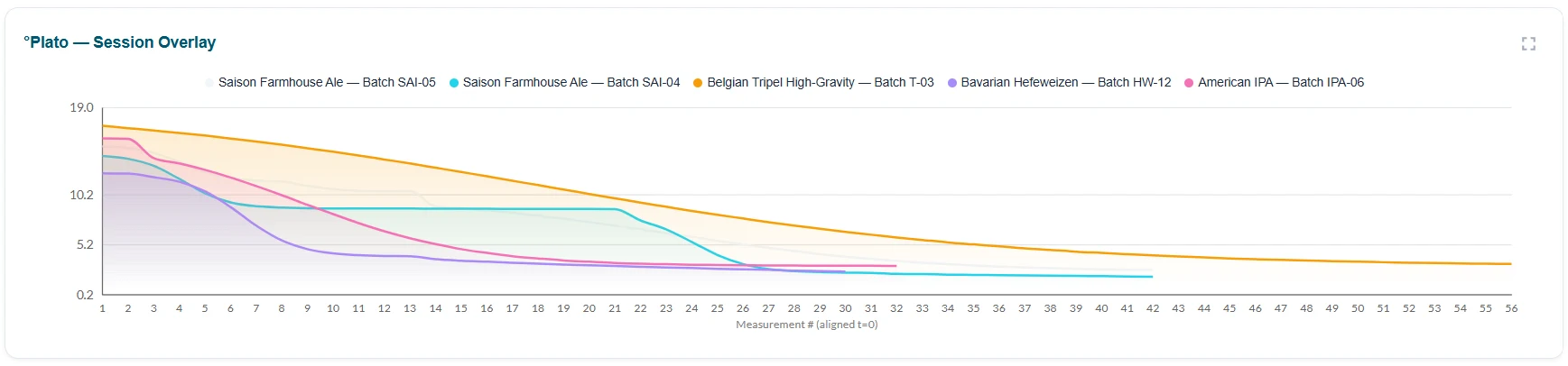
The current batch can be compared with up to five batches of the same method: overlaid curves, with the mean and standard deviation of each.
Results of other analyses, from an in-house or outside laboratory, are recorded in the session; the main value appears on the chart on its own axis, and all results are included in the report.
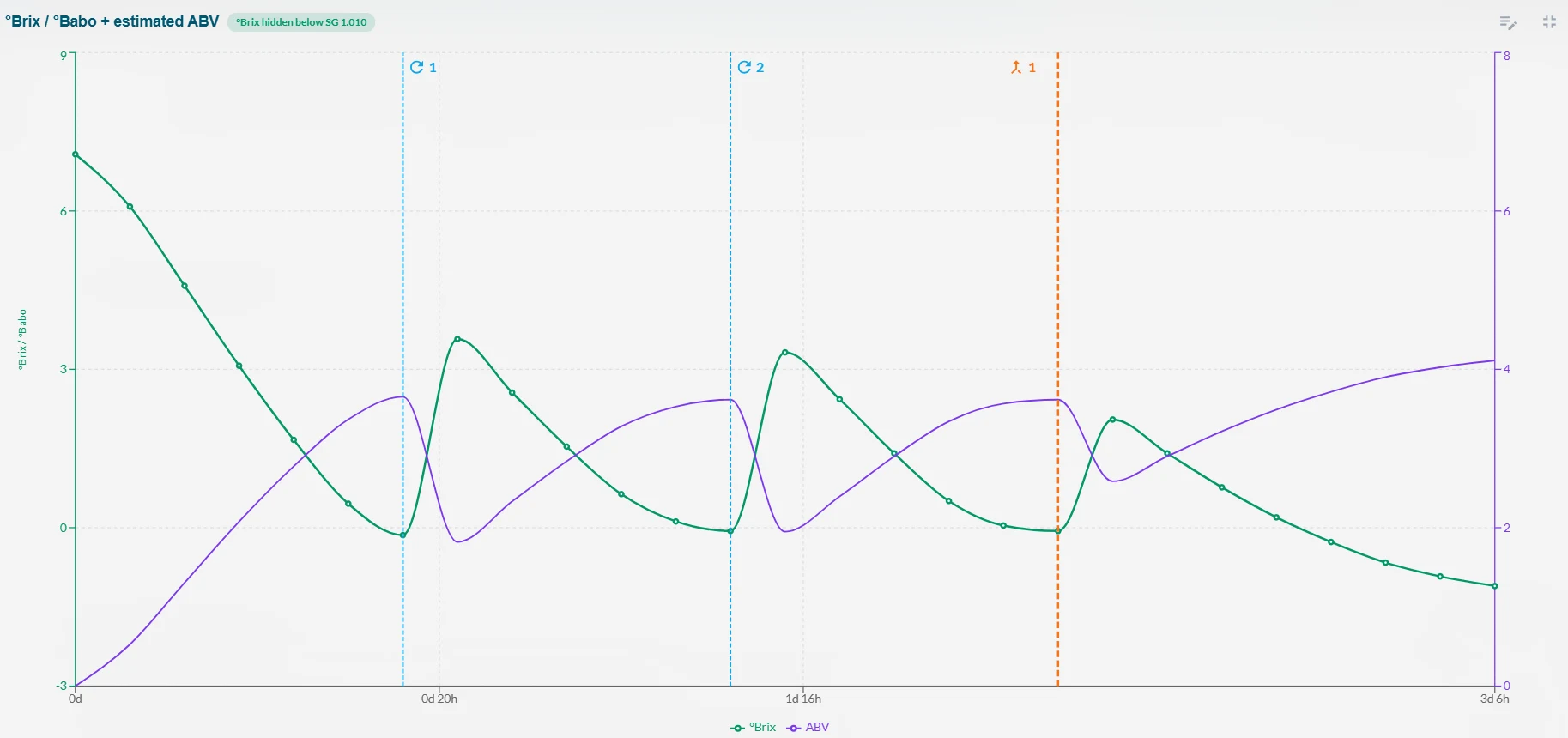
Events and observations are annotated on the chart as a note, marker or phase, with the author's name, and are carried into the report.
Each MicroDens is registered by its serial number and a user-assigned name. Instruments connect one at a time; each reading keeps the serial number.
Logger Pro sends the next sample ID to the instrument, fixed or incremental, so the operator does not have to type it.
Screens from the Logger Pro user manuals. Click to enlarge.
A target and a tolerance are set for each session. Logger Pro evaluates each reading, each sample or the whole batch and shows the result: OK or out of specification (OOS).
Statistics have three levels: basic (number of readings, mean, standard deviation, minimum and maximum), extended (median, percentiles, coefficient of variation) and process control (Cp, Cpk, control limits).
In Session Comparison the current batch is shown beside up to five batches of the same method, with overlaid curves, the mean and standard deviation of each, and the difference from the overall mean.
Fermentation is a paid add-on module for Logger Pro: a single license covers both wine and beer fermentation. It is included in the 30-day free trial.
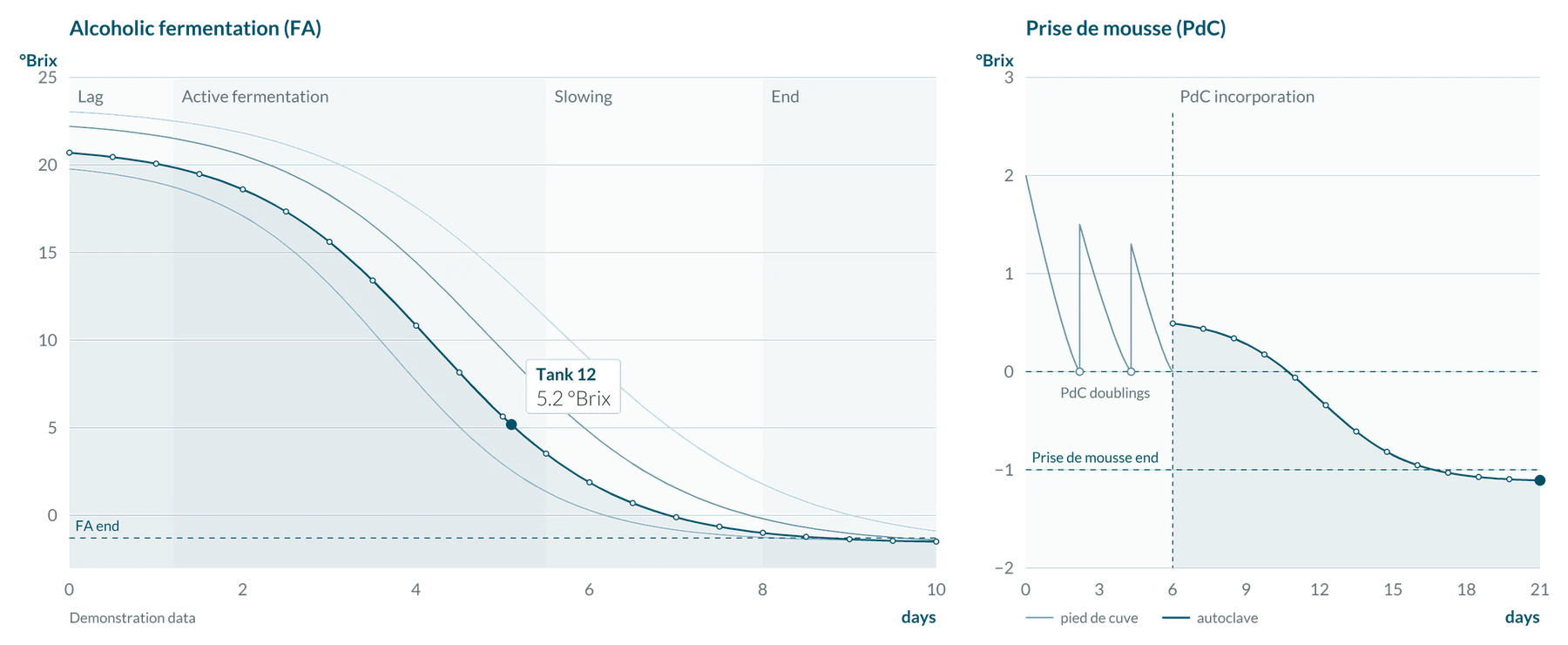
During alcoholic fermentation, density decreases as sugars are converted into alcohol. Measured at intervals on the same tank or fermenter, density describes the course of fermentation: its curve shows when fermentation starts, when it slows down and when it approaches the end. Logger Pro plots each MicroDens reading on the curve and derives phase, status and estimated end. For wine the reference scale is °Brix, for beer degrees Plato (°P).
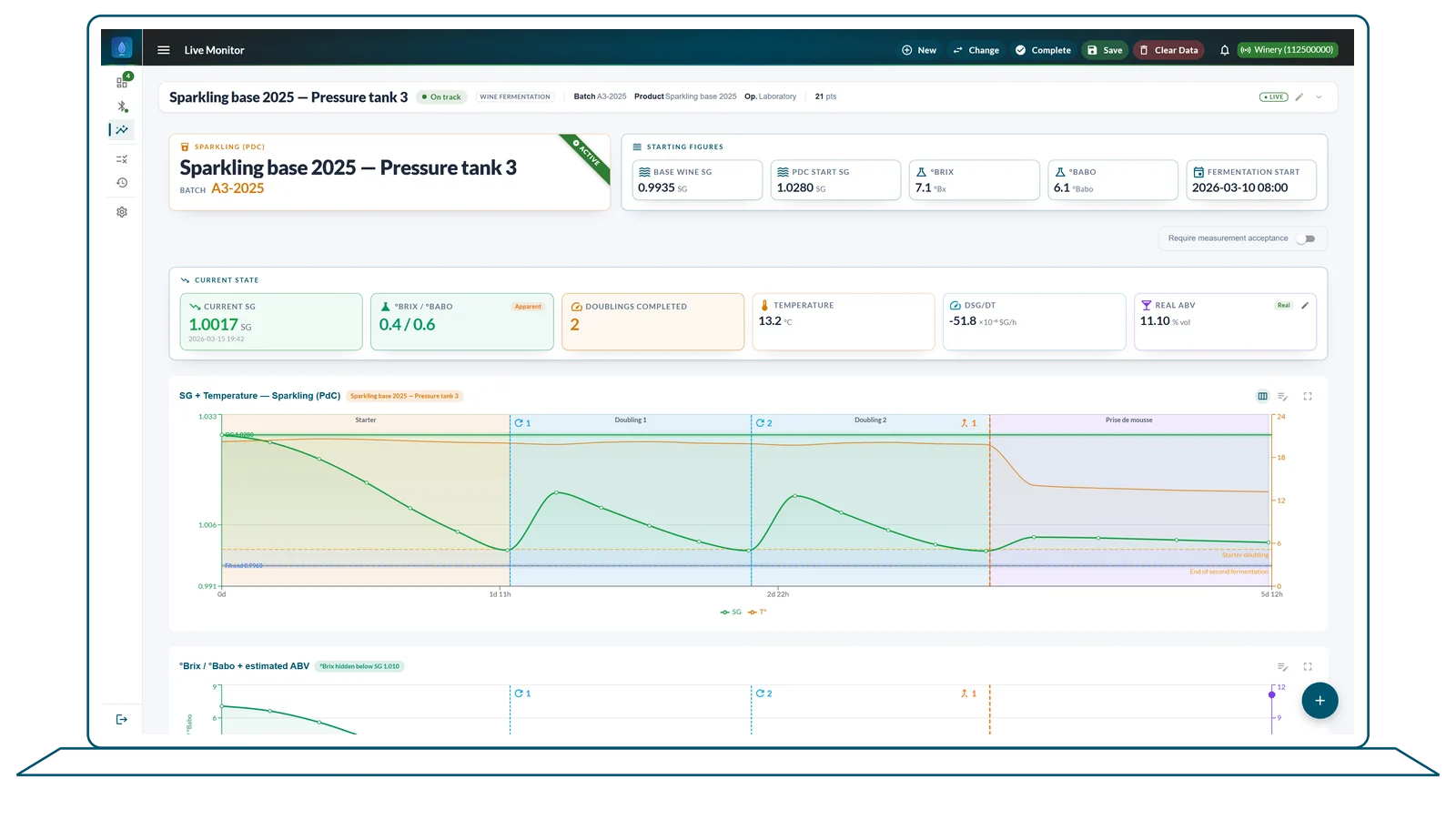
One session per tank, with phases, gravity thresholds, lab analyses and enological event log; a linked prise de mousse session starts from the alcoholic fermentation, with the pied de cuve doublings.
Wine fermentationOne session per fermenter, with apparent extract, apparent and real attenuation, estimated ABV and final gravity (FG) projection.
Beer fermentationEvery tank followed in real time
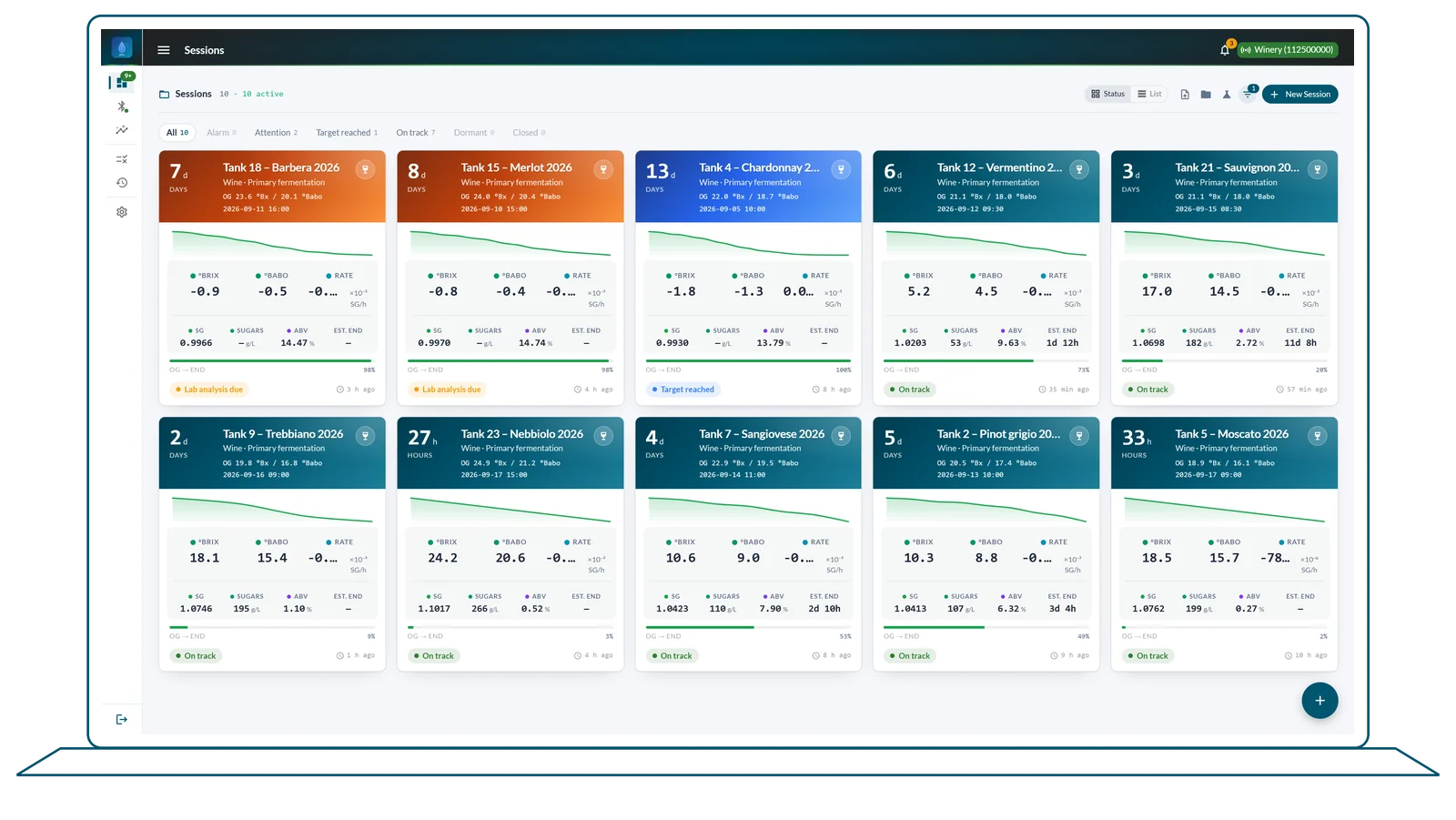
Each MicroDens Wine Must reading adds a point to the tank curve and updates phase, residual sugars and status. The module covers alcoholic fermentation (FA) and prise de mousse.
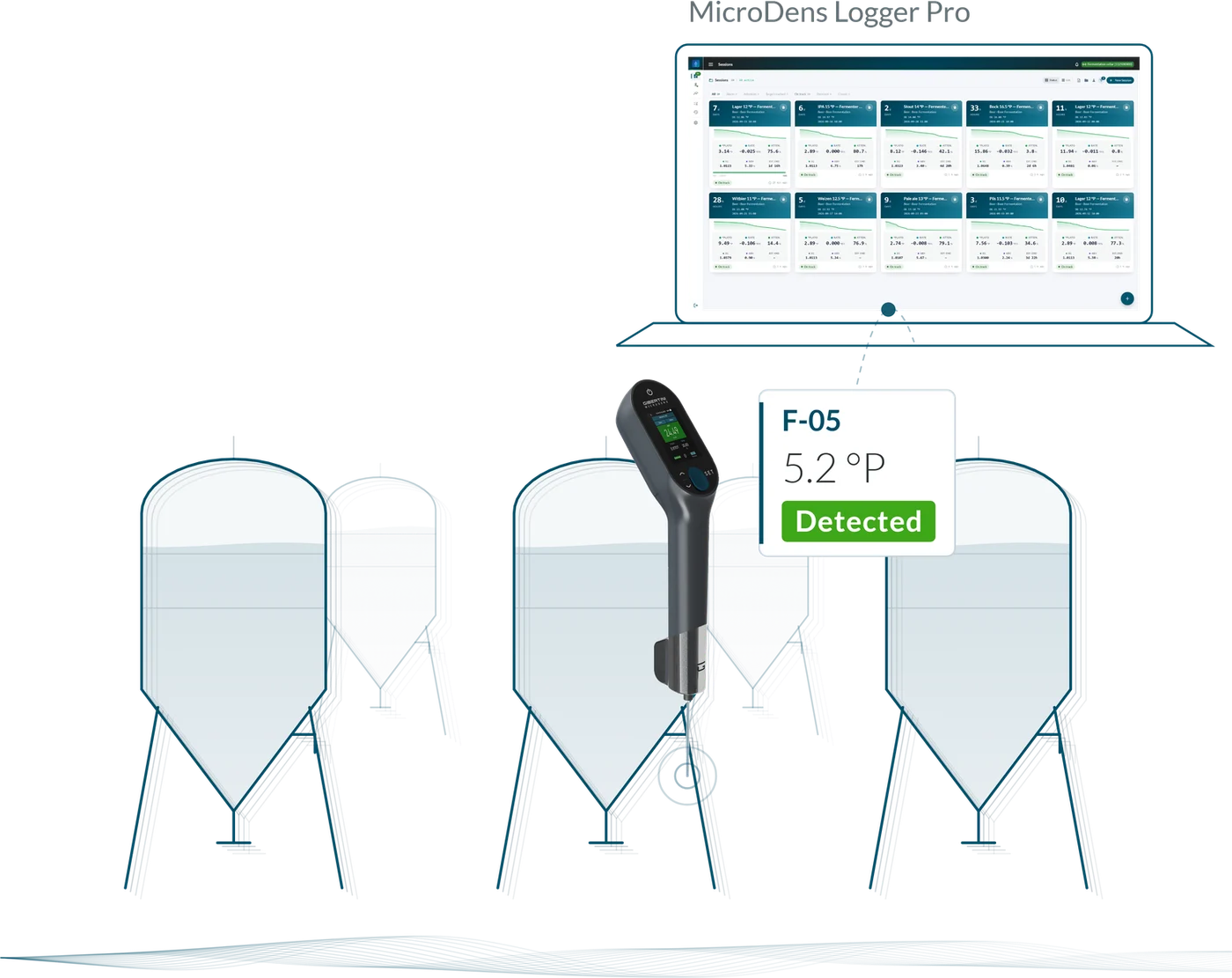
The Sessions page brings the tanks together, each with its curve, last reading and status. The PDF tank report includes charts, thresholds, the enological event log and lab analyses; the Excel file contains the fermentation summary, the event log and the lab analyses.
Sessions can also be created in bulk, up to fifty at a time. If the MicroDens sample ID matches the tank name, the Wine Must reading enters that tank's session.
°Brix, °Babo, SG at 20 °C and temperature at every reading. The chart distinguishes lag, active fermentation, slowing and end of FA; a gravity threshold signals the nutrient addition.
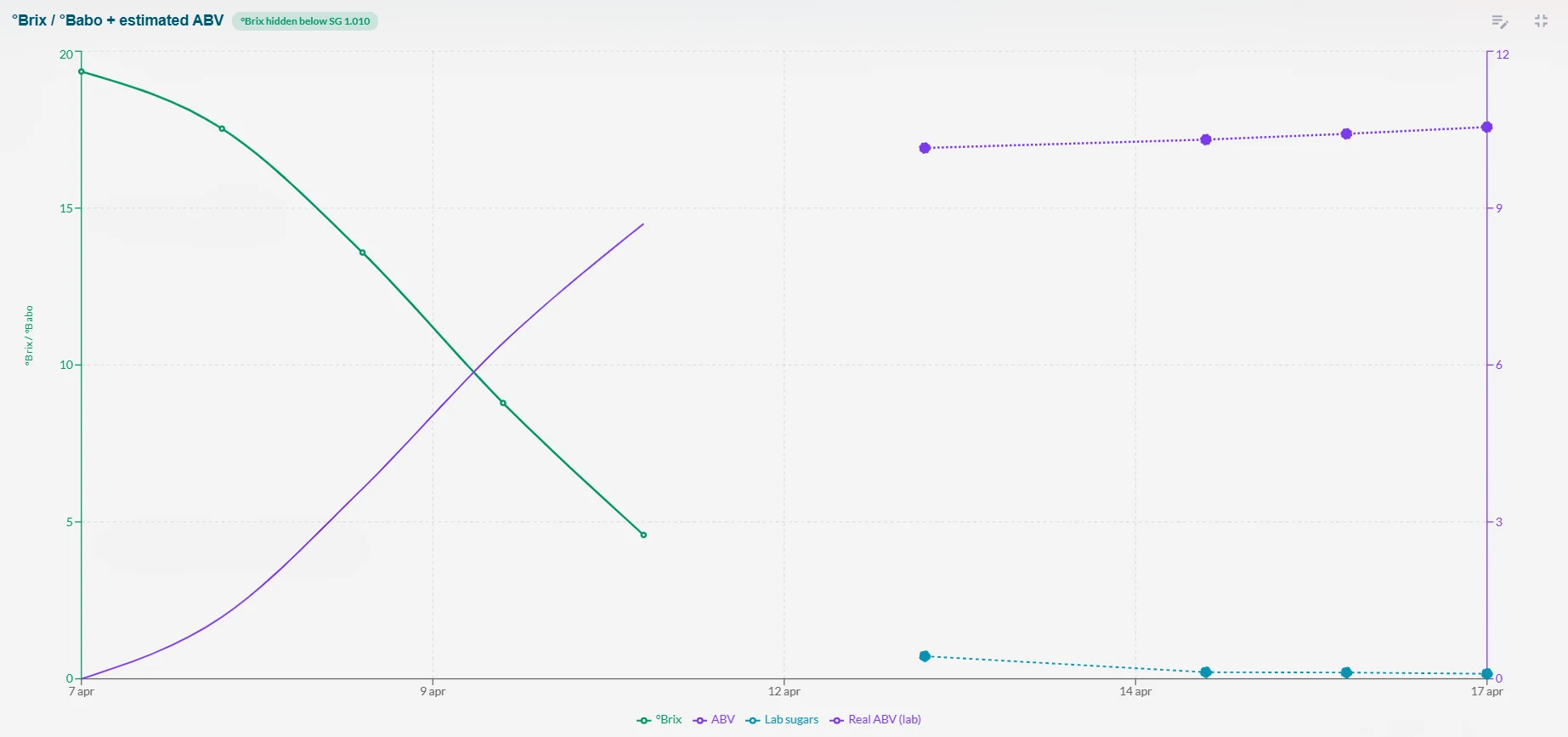
Residual sugars, malic acid, SO₂ and pH, from an in-house or outside laboratory, are recorded in the session. Sugars and real ABV are shown on the curve, the other values on a dedicated chart; real ABV replaces the estimate.
A tank can be compared with other tanks or earlier fermentations: curves aligned from the start, starting gravity, ABV and duration. Up to five sessions besides the current one.
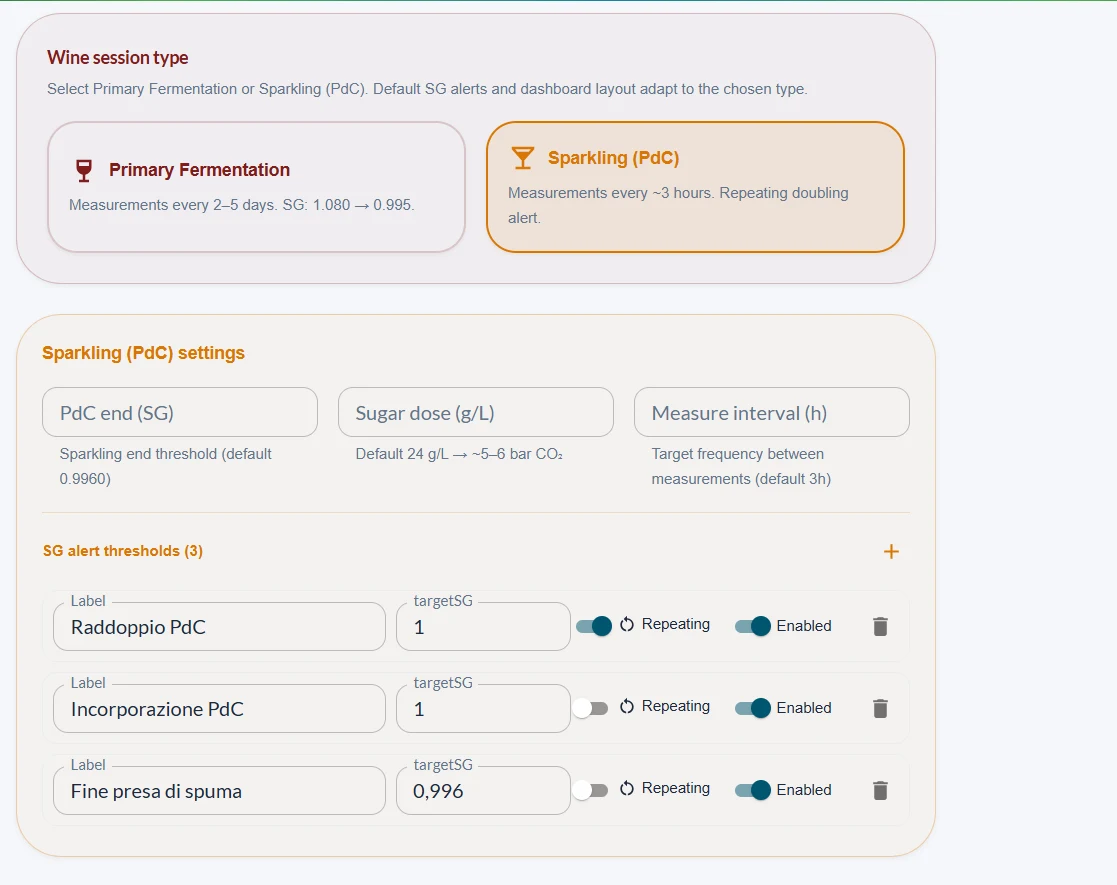
A linked prise de mousse session opens from the FA, with the base wine SG. Each pied de cuve doubling is flagged and counted; other thresholds indicate the transfer to the autoclave and the end of prise de mousse.
Gravity thresholds are set for each session, also relative to the starting gravity, and the FA end estimate is calculated from the last five readings. Actions confirmed at the thresholds are recorded in the enological event log.
Screens from the Logger Pro user manuals. Click to enlarge.
Every fermenter followed in real time
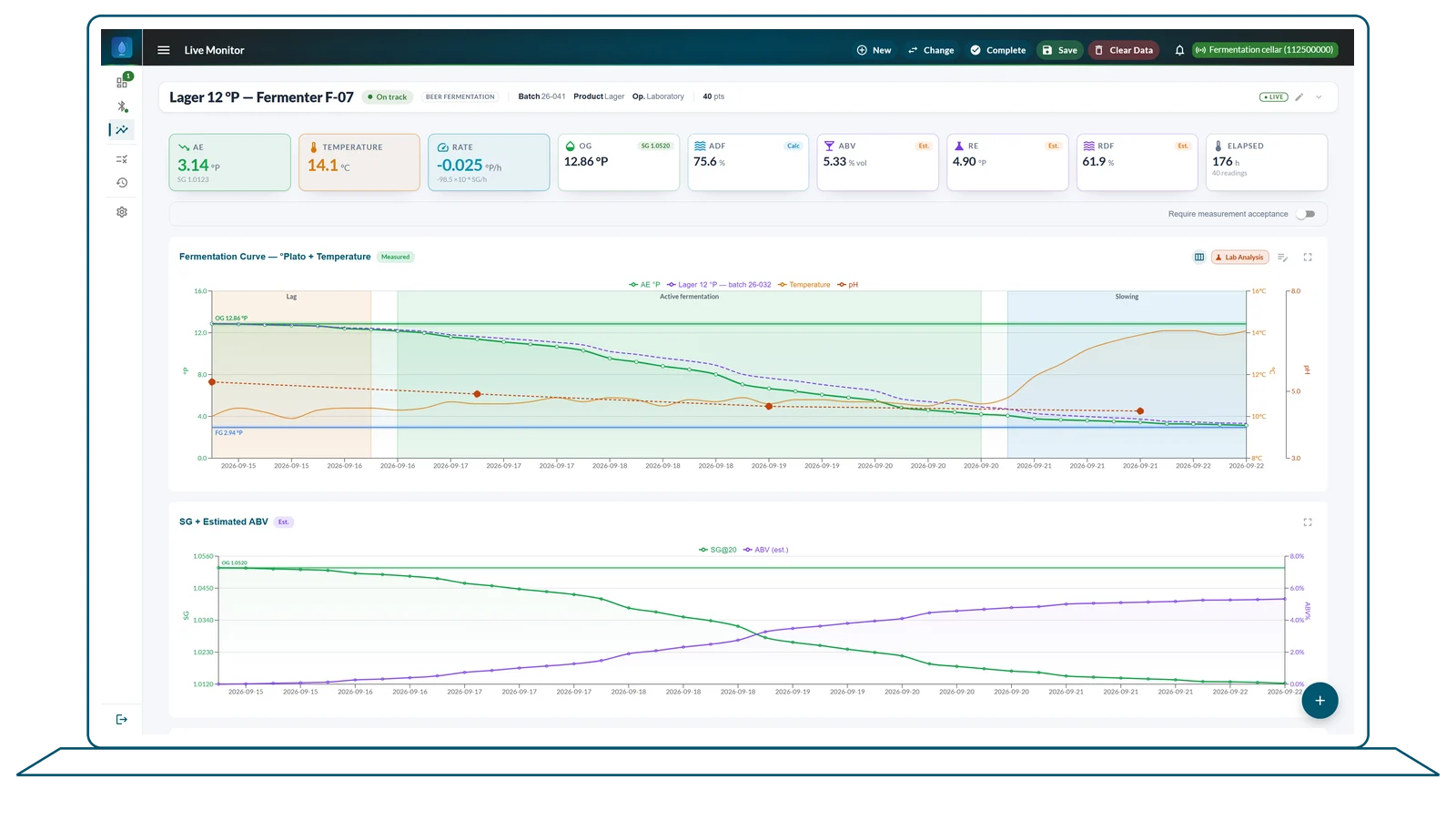
Each MicroDens BeerQuick reading adds a point to the fermenter curve and updates extract in °Plato, attenuation, phase and status.
The reading also carries the original gravity of the wort (OG), which Logger Pro uses to assign it to the fermenter. The Sessions page brings the fermenters together, each with its curve, last reading and status.
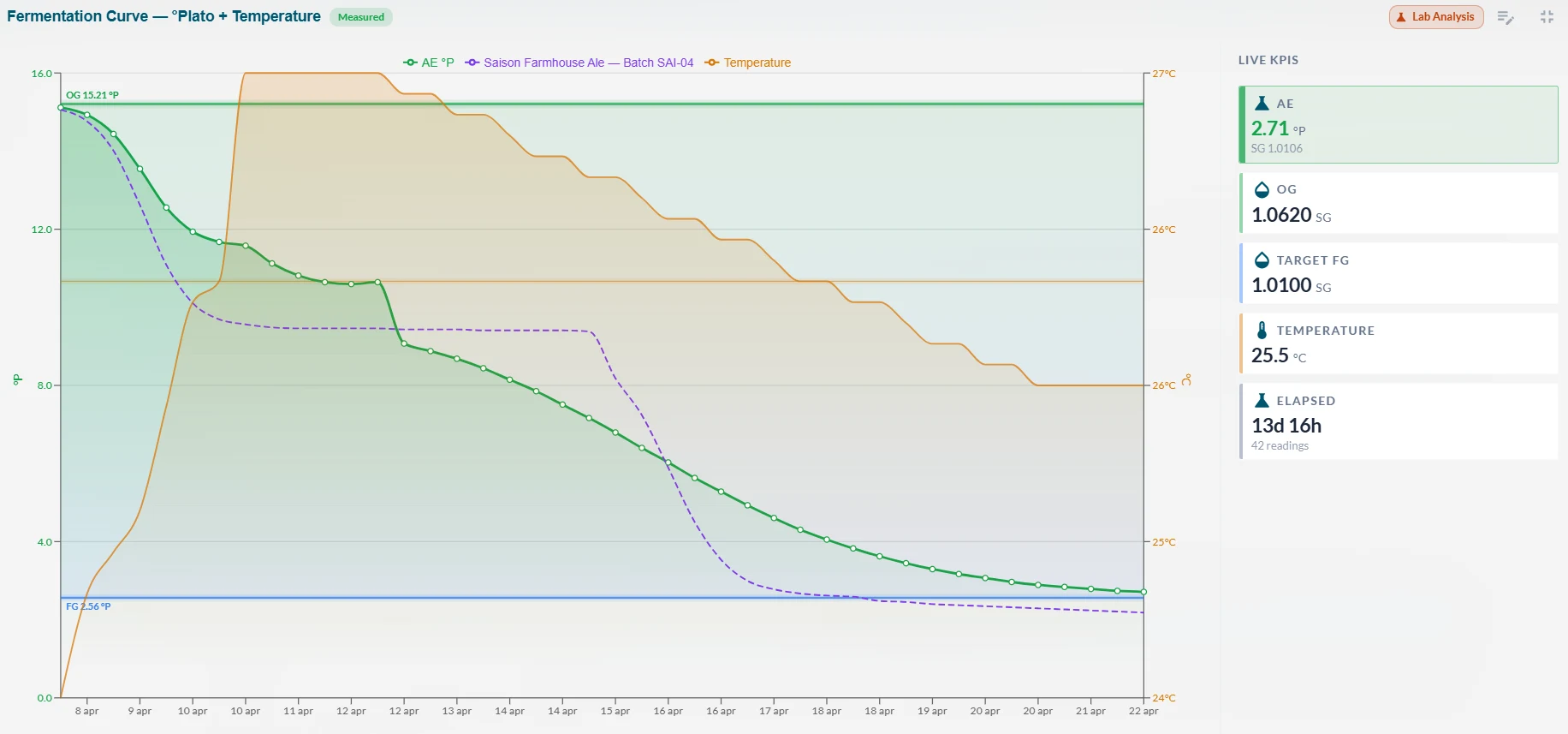
Logger Pro follows beer fermentation on the apparent extract, in °P, from the OG of the wort to the final gravity (FG).
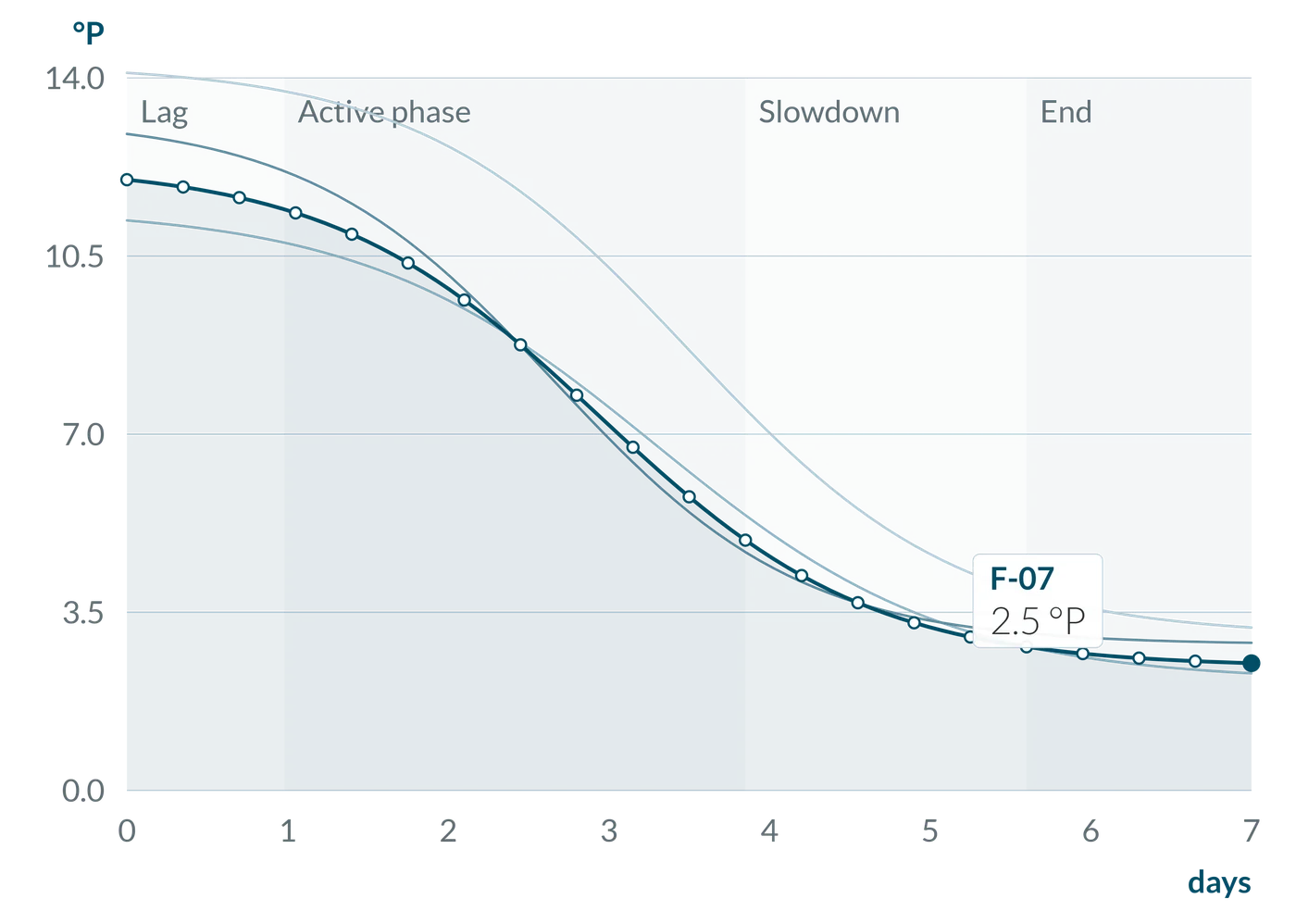
From the curve of a batch saved as a reference, or from the trend of the last 24 hours, Logger Pro estimates the final gravity (FG) and the remaining time, with a confidence rating.
Each BeerQuick reading carries the OG of the wort, and Logger Pro assigns it to the fermenter with the same OG; if two batches match, the operator selects which one.
Each reading provides apparent extract in °P, apparent and real attenuation, estimated ABV and temperature. The curve indicates lag, active fermentation, slowing and end.
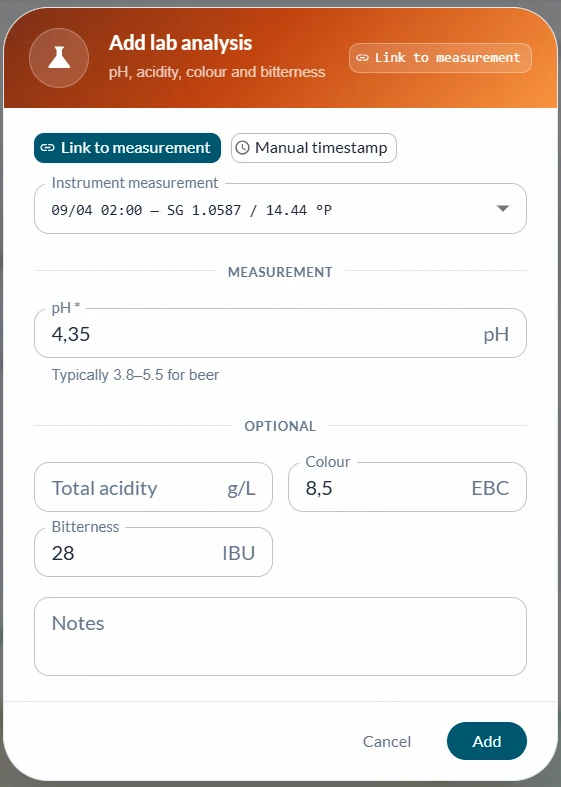
pH, acidity, color in EBC and bitterness in IBU, determined in the brewery or by an outside laboratory, are recorded in the batch session. The pH is shown on the curve.
The fermenting batch can be compared with earlier batches: curves aligned from the start, with OG, attenuation, ABV and duration of each. Up to five batches besides the current one.
Screens from the Logger Pro user manuals. Click to enlarge.
The MicroDens sends each saved reading to the MicroDens BLE dongle, included with the instrument and plugged into a USB port of the PC. At startup Logger Pro connects to the dongle automatically.
saves the reading and sends it via Bluetooth (BLE)
on a USB port of the PC, receives the instrument readings
assigns the reading to the session and updates chart, statistics and result
Excel, PDF or CSV, with statistics and annotations; charts in the PDF
Readings stored in the instrument memory (History) are imported in bulk and assigned to the open sessions by sample ID, after a review that excludes duplicates. The transfer is started from the instrument.
Sessions stay on the PC. A scheduled backup saves the archive to a local folder and, if configured, to a server, where reports can also be sent automatically after each export.
MicroDens Logger Pro is a paid program, with price on request. The 30-day free trial version, including the Fermentation module, is available from Gibertini on request.
| License | |
|---|---|
| Workstations | one license per PC |
| Term | perpetual or fixed-term |
| Activation | signed license file, no internet connection required |
| Price | on request |
| Optional module | Fermentation (wine and beer), paid |
| Free trial | 30 days from first startup, Fermentation module included, on request |
| Updates | included in the license; at startup the program checks whether a new version is available and installs it after the operator confirms |
| Support | included in the license: service@gibertini.com |
The price depends on the number of workstations, the license term and the Fermentation module. Gibertini replies to each request with a written quote.
| Requirements and specifications | |
|---|---|
| Instrument | MicroDens density meter |
| Connection | MicroDens BLE dongle on a USB port of the PC, included with the instrument |
| Operating system | Windows 10 or 11, 64-bit |
| Memory | 8 GB RAM, 16 GB recommended |
| Disk space | 1 GB |
| Languages | English, Italian |
| Users | optional password login; User, Operator and Admin roles |
| Export | Excel (.xlsx), PDF, CSV |
| Archive | on the PC, with scheduled backup and server upload |
| Current version | |
Quotes and the trial version are available by email or phone.
info@gibertini.com · +39 02 3541434 · Monday–Friday, 9 a.m.–6 p.m. (Italian time) · support: service@gibertini.com
To record readings in Excel, to read the instrument memory and to configure the instrument, Gibertini provides three free Windows programs. Sessions, tolerances, statistics, batch comparison and the Fermentation module are Logger Pro features.
Records in an Excel file each reading received through the MicroDens BLE dongle, or the entire instrument memory.
Program pageReads over the USB cable every measurement stored in the instrument and records it in Excel, with adjustments and instrument data.
Program pageApplies to the instrument the scripts prepared by Gibertini service and updates the firmware of the instrument and of the MicroDens BLE dongle.
Program pageThe instrument, its applications and technical specifications: MicroDens portable digital density meter.